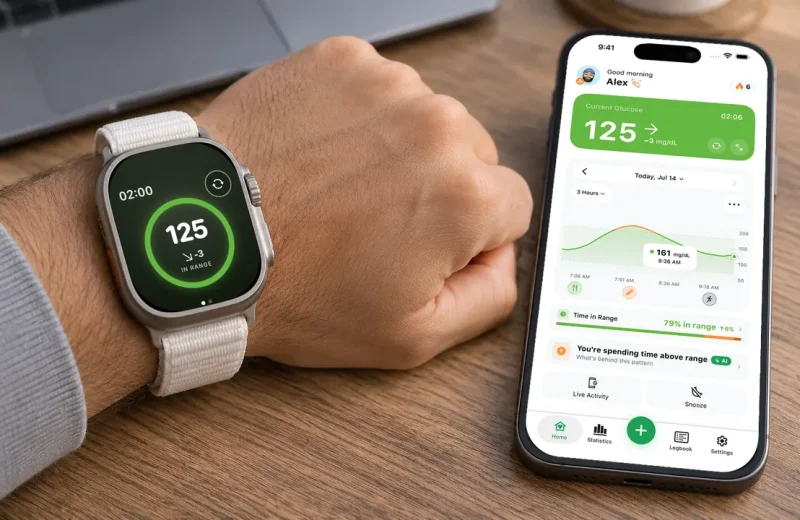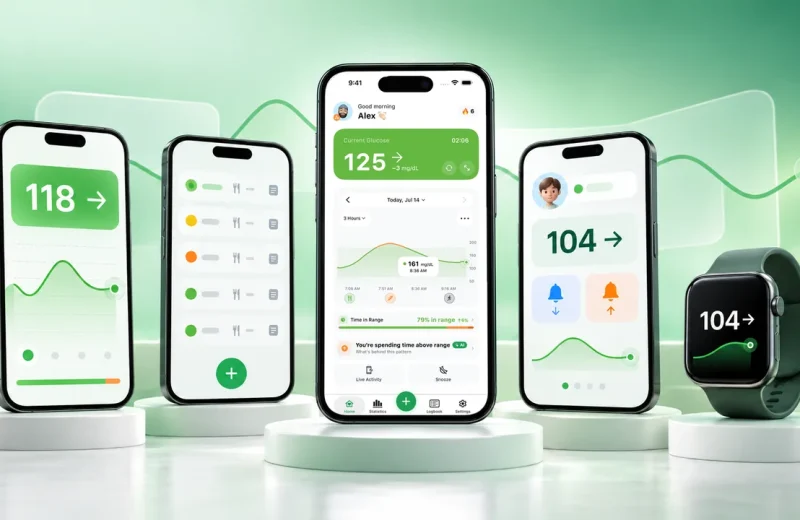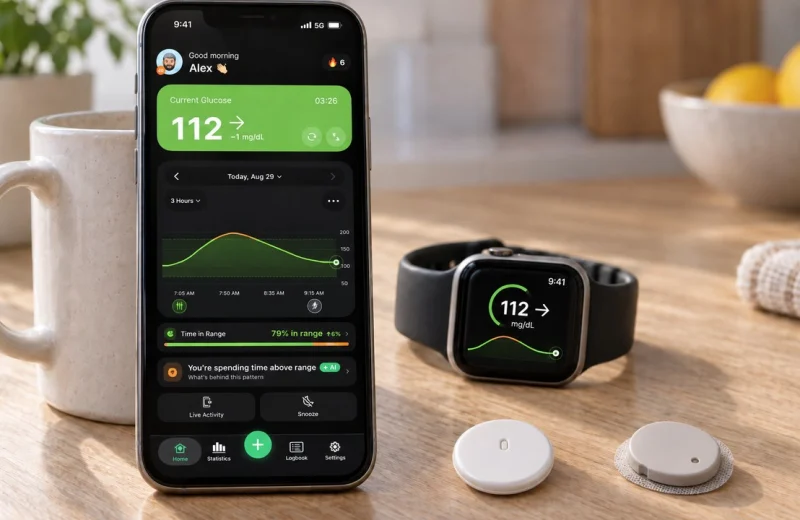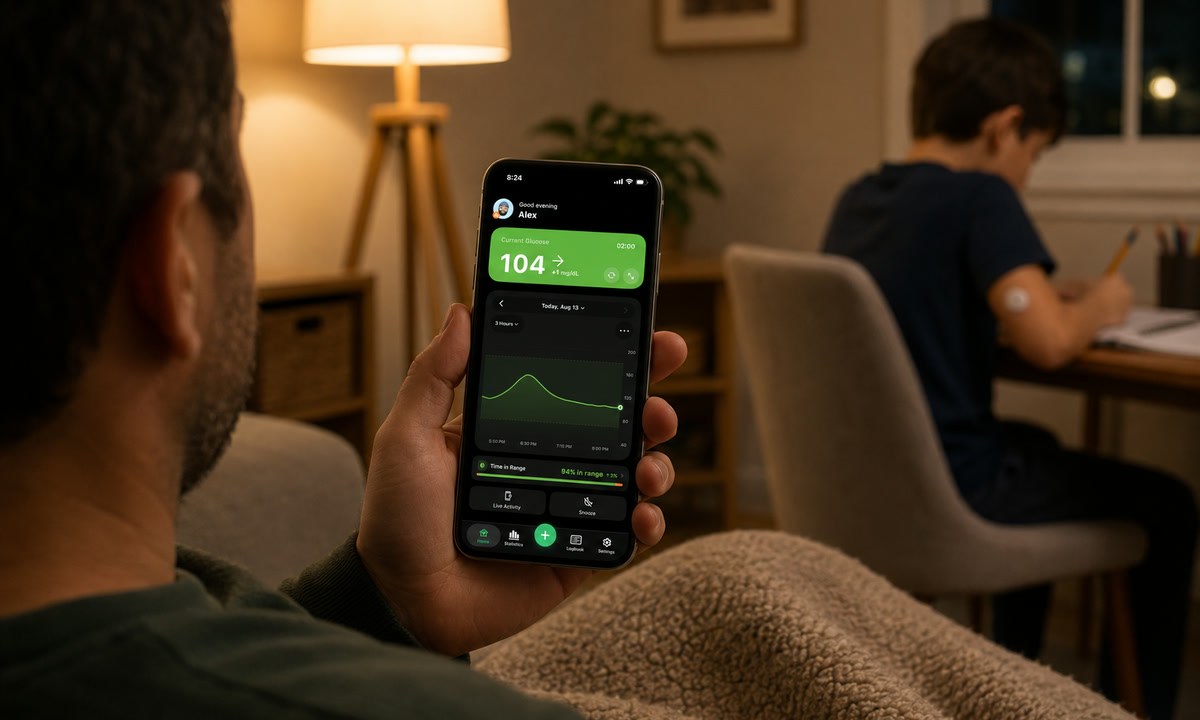
Dexcom Share is a setting inside the wearer’s Dexcom G6 or G7 app that pushes glucose readings out to the cloud, while Dexcom Follow is the free app a parent, partner, or caregiver installs on their own phone to receive them. One broadcasts, the other listens. If you wear a Dexcom CGM or care for someone who does, this guide explains the difference, the setup on both phones, what changed with the new Follow app in 2025, and what to do when Follow shows no data.
The part that trips families up is the plumbing. Nothing reaches a follower unless the wearer’s phone has an internet connection and the Dexcom app is alive in the background. Share is the switch. The wearer’s phone is the pipe. Getting that setup right matters when a parent, partner, or caregiver is relying on real-time glucose readings and alerts to keep up with highs, lows, and overnight trends from a distance.
| Dexcom Share | Dexcom Follow | |
|---|---|---|
| Who uses it | The person wearing the CGM | Family members and caregivers |
| Where it lives | Inside the Dexcom G6 or G7 app | The separate Dexcom Follow app |
| What it does | Sends readings out to Dexcom’s servers | Receives and displays those readings |
| What it needs | Internet on the wearer’s phone | An invitation from the wearer |
On this page
| Dexcom Share | Dexcom Follow | |
|---|---|---|
| Who uses it | The person wearing the CGM | Family members and caregivers |
| Where it lives | Inside the Dexcom G6 or G7 app | The separate Dexcom Follow app |
| What it does | Sends readings out to Dexcom's servers | Receives and displays those readings |
| What it needs | Internet on the wearer's phone | An invitation from the wearer |
Share sends, Follow receives
Share is outbound and lives in the wearer’s app. Follow is inbound and lives on someone else’s phone. A wearer never installs Follow for their own data, and a follower never installs the main Dexcom app.
If the names blur together, hold on to the direction of travel:
- Share: the wearer shares out. A feature inside the app that is paired to the sensor.
- Follow: the loved one follows in. A separate free download on iPhone or Android.
The wearer stays in charge of the whole arrangement. They invite people by email, they decide which alerts each follower is allowed to receive, and they can remove anyone from the list at any time without touching the sensor. Back in the G4 era there was also a standalone Share receiver, which is why old forum threads talk about Share as hardware. On G6 and G7, it is just a setting.
How to share Dexcom G7 data with family: Share, step by step
The wearer enables Share in the Dexcom app and sends an email invitation; the follower installs Dexcom Follow and accepts it. Dexcom allows up to 10 followers for one wearer, and each follower needs their own accepted invitation.
On the wearer’s phone: Connections, then Share
Dexcom’s own instruction for the G7 is short: go to Connections, then Share, and follow the on-screen steps. One wearer can share with up to 10 followers, the wearer’s phone needs internet, and the follower needs the separate Follow app.
- Open the Dexcom G6 or G7 app.
- Tap the Share icon (a person or an arrow, depending on your app version).
- Enable Share and enter the follower’s email address.
- Set the alert permissions you want that person to have, then send the invite.
How to follow someone on Dexcom G7: the follower’s side
- Install the free Dexcom Follow app from the App Store or Google Play.
- Open the invitation email and accept it.
- Confirm the connection inside Follow.
Remote sharing like this is now a normal part of how continuous glucose monitors are used. The NIH’s NIDDK overview of continuous glucose monitoring describes sending readings to a parent’s or caregiver’s phone as one of the system’s standard capabilities. Once both sides are linked, readings usually appear within a few minutes. If they do not, the Dexcom troubleshooting guide covers the usual culprits.
What a follower sees, and how fresh it is
Follow shows the wearer’s current value, the trend arrow and a short history graph, updating as each new reading arrives roughly every five minutes. That is about 288 readings across a full day, each one making its way from sensor to phone to cloud to follower.
Every hop costs a little time, so build that into how you read the screen. Say the wearer is dropping at about 2 mg/dL per minute and the follower’s phone shows 95 mg/dL with a single down arrow. If that reading is one five-minute cycle old by the time it is seen, the real number is closer to 85 mg/dL, and still falling. Nothing is broken. The screen is describing the recent past.
Thresholds deserve a conversation between the two people involved rather than a guess. Most adults aim to spend as much of the day as possible between 70 and 180 mg/dL (3.9 to 10.0 mmol/L), the range set out by the 2019 International Consensus on Time in Range in Diabetes Care. A follower alert that fires on every brief trip above 180 will buzz many times a day and stop meaning anything. Save it for lows, or for highs that persist, and it tends to survive the first week.
The new Dexcom Follow app: what changed in 2025
In June 2025 Dexcom replaced the Follow app with a new one (a fresh listing in the App Store, first release on June 18, 2025). Dexcom’s Follow app updates page spells out the changes: a new design, cross-regional syncing so a sharer and a follower can connect across country lines, home-screen widgets for check-ins at a glance on Android only, and the line that matters for anyone still on the old version: with the launch of the latest Follow app, previous versions will no longer be updated.
Switching is mostly painless. Install the new app and sign in with the same email address you used before, and the new app imports your sharers during onboarding, so nobody has to send a fresh invitation. Both phones still need mobile data or Wi-Fi.
The part iPhone caregivers ask about most is the home-screen widget, because the new app offers widgets on Android only. If a glance at the phone without opening an app is what you are after on an iPhone, that is exactly what the Sugar Sense follower view does: the person you follow shows up in a widget and a Live Activity, fed by the same Dexcom Share channel, alongside the Follow app rather than instead of it.
Dexcom Follow app no data: why it happens and the fix order
Almost every “No data” screen on a follower’s phone starts on the wearer’s side, because the wearer’s phone is the only thing uploading readings.
- No internet on the wearer’s phone. No Wi-Fi and no cellular means no upload. This is the most common cause by a wide margin.
- The Dexcom app was force-quit. It has to keep running in the background to hand data off to the cloud.
- Share got switched off, or the follower was removed. Worth checking the follower list rather than assuming.
- Sensor warm-up or a dropped Bluetooth link. During warm-up there are no readings to send yet.
- Notifications blocked on the follower’s phone. The graph may be updating fine while the alerts stay silent because of an iOS or Android permission.
A gap of a few minutes is ordinary. A gap of an hour usually means a phone, not a sensor.
Which app do you need, and what else can receive Share?
- You wear the sensor: use the main Dexcom app and turn Share on. Skip Follow.
- You watch over someone else: install Follow, accept the invitation, and leave the main Dexcom app alone.
- Both at once: the main app for your own glucose, Follow for the family member you keep an eye on.
Follow is not the only app that can sit at the receiving end. Third-party companion apps, including Sugar Sense, read the same official Dexcom Share feed. The wearer’s setup does not change, and a follower can add one alongside Follow or use it instead. Families who need alert plans, school-day coverage or long-distance arrangements will find more of that thinking in the caregiver’s guide to remote glucose monitoring.
Sharing with your clinic is a different door
Follow is for family and friends. Your clinic sees your data through Dexcom Clarity instead: the clinic gives you a sharing code, you enter it under Connections, then Clinic, in the G7 app (or in Clarity itself), and the clinic’s Clarity account starts receiving your data. Turning Share on for a follower does nothing for the clinic, and a clinic code does nothing for a follower.
Frequently asked questions
Can you use Dexcom Follow without Share turned on?
No. Follow is only a window onto data the wearer chooses to send. Until Share is enabled in their app and your invitation has been accepted, the app has nothing to display, however many times you reinstall it.
Does Follow keep working when the wearer’s phone is off?
Readings travel from the wearer’s phone to Dexcom’s servers and out to followers, so a powered-off phone, airplane mode or a flat battery pauses the feed. Followers see the last value, then a gap until the connection comes back. Flights are the classic case, and our guide to traveling with diabetes and a CGM covers what to check before and after one.
How many people can follow one Dexcom user?
The limit Dexcom sets is 10 followers per wearer. In the other direction, Dexcom’s G7 FAQ says a follower can follow up to ten sharers, and the new Follow app’s store listing says up to 25. Each person needs their own copy of the Follow app and their own accepted invitation, so forwarding somebody else’s invitation email does not create a second connection.
Can one caregiver follow two children in the same app?
Following more than one person from a single Follow app works, so one caregiver can track more than one person in the same app. Each child’s app still needs Share enabled, and each child sends a separate invitation to the same caregiver email address.
Is Dexcom Follow the same as glucose on your own Apple Watch?
Different setups entirely. Follow puts someone else’s readings on a caregiver’s phone. Watching your own numbers on your wrist depends on how your phone, watch and app are paired, which the guide to CGM on Apple Watch walks through.
Does the Dexcom G7 have a follow app?
Yes. Dexcom’s own answer is that the Follow app works the same way with G7 and G7 15 Day as it did with G6, followers do not need the G7 app, only Follow, and existing G6 followers carry over automatically when the wearer upgrades.
What happened to the Dexcom Follow app?
Dexcom released a new Follow app in June 2025 and stopped updating the previous versions. Install the new one from the App Store or Google Play, sign in with the same email, and your sharers import automatically. See the section above for what changed.
How do I get Dexcom Follow on my home screen?
On Android, the new Follow app has home-screen widgets. On iPhone, the new app does not offer a home-screen widget, so the options are opening the app, the Apple Watch view, or a companion app that reads the same Share feed and puts the number in a widget or a Live Activity, or reads it out loud through an Alexa skill.
Is the Dexcom Follow app the same for G6 and G7?
Yes, one Follow app serves both. The sharer’s side differs a little (Share settings live inside whichever Dexcom app they use), but the follower installs the same Follow app either way.
Why is my Dexcom Follow app not alerting?
Alerts are permissions the sharer grants per follower inside their Share settings, so start there: the wearer has to allow each alert for you. Then check the phone side: notifications enabled for Follow, no Focus or Do Not Disturb mode swallowing them, and the app updated to the current version. And remember Dexcom’s own rule that treatment decisions are made on the wearer’s primary Dexcom app or receiver, never on Follow.
If you would rather watch it all in one place
Sugar Sense connects through Dexcom Share, the same official channel Follow uses. The wearer changes nothing, and the follower gets the readings on an iPhone, a watch face, and a lock screen widget. High and low alerts plus a heading-low warning come along with it, and Care Circle lets more than one family member watch the same person, which can help loved ones stay connected. Take a look at how Sugar Sense works if that fits your household better.
Everything above is general education, not personal medical advice. Follow, Sugar Sense and any other viewer app sit downstream of the wearer’s phone and the cloud, so they can lag or fall quiet; the Dexcom app or receiver and its own alarms stay the layer you act on. Confirm anything that matters on the CGM itself or with a finger stick, and keep treatment and medication choices with your healthcare team. Our disclaimer page has the rest of the detail.