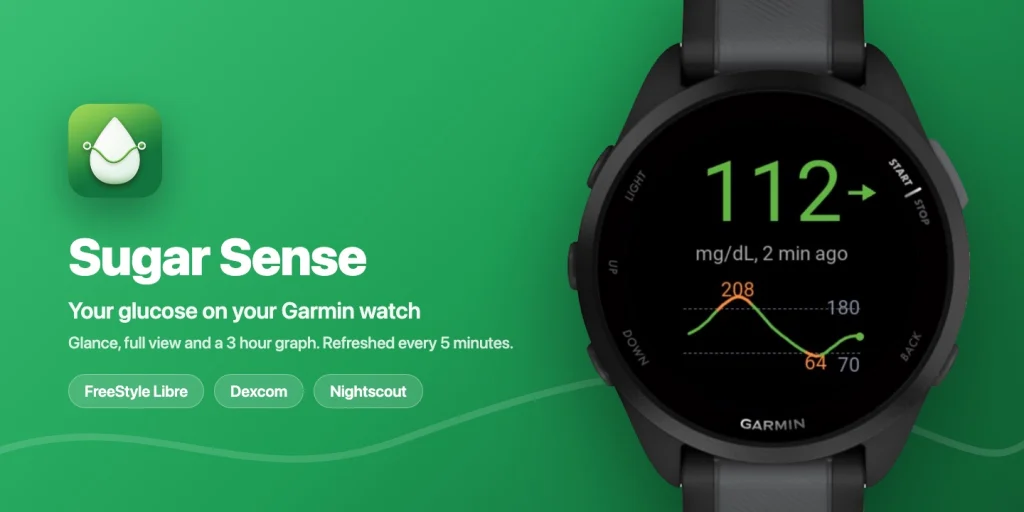
Your glucose, on your Garmin watch. Sugar Sense now brings your CGM readings to more than 140 Garmin devices, from Forerunner and Fenix to Venu, Instinct and even Edge bike computers. This guide walks you through the whole setup, from installing the app to seeing your first reading on your wrist. It takes about five minutes.
On this page
What you get
Sugar Sense for Garmin is a secondary display for the Sugar Sense account you already use on your phone. It works with FreeStyle Libre (via LibreLinkUp sharing), Dexcom (via Dexcom Share) and Nightscout, and it shows:
- Glance: your current value and trend arrow in the widget carousel, one press away from the watch face
- Full view: a large zone colored reading, trend arrow, data age and a 3 hour trend graph with your high and low guide lines
- Data field: your glucose inside any activity screen, next to pace and heart rate, so you can keep an eye on it during a run or ride
- Watch face: a complete Connect IQ watch face with your glucose as the largest thing on the glass, next to the time, date, steps, heart rate and battery, refreshed every 5 minutes while it is your active face
Readings refresh in the background every 5 minutes, in mg/dL or mmol/L depending on your account settings. Values older than 15 minutes grey out, so stale data never looks live.
Before you start
You need three things:
- The Sugar Sense app on your phone (iOS or Android), signed in and connected to a glucose source: FreeStyle Libre, Dexcom or Nightscout. If you have not set that up yet, download the app here first.
- Sugar Sense Premium, purchased in the phone app. The Garmin apps themselves are free to install.
- The Garmin Connect app on your phone, with your watch already paired to it.
Step 1: install Sugar Sense on your watch
- Open the Connect IQ Store app on your phone (it comes from Garmin, install it from your app store if you do not have it).
- Search for Sugar Sense.
- Install Sugar Sense (the widget with glance and full view). If you also want glucose inside your activity screens, install Sugar Sense Data Field too. They pair separately but work the same way. Want your glucose on the main screen at all times? Install Sugar Sense Watch Face as well, and see the watch face section further down.
- Wait for the app to sync to your watch. This usually takes under a minute while the watch is connected to your phone.


Step 2: open the app and get your pairing code
On the watch, open the widget carousel and select Sugar Sense. The first launch shows a short pairing code and the address to visit. That is all the watch asks of you: you never type an email or password on the watch itself.
Step 3: enter the code in your browser
- On any phone, tablet or computer, open app.sugarsense.io/garmin.
- Sign in with the same account you use in the Sugar Sense phone app.
- Type in the code from the watch and confirm.
Within a few seconds the watch picks the account up automatically and your current glucose appears. From then on it refreshes itself every 5 minutes in the background. You do not need to repeat any of this: pairing is a one time step.
Adding the data field to an activity
If you installed Sugar Sense Data Field, add it to an activity layout once and it stays there:
- On the watch, open the activity you use (for example Run), then long press for options.
- Choose the data screens settings and edit a layout.
- Pick a field slot and select Sugar Sense from the Connect IQ fields list.
The field shows your value and trend arrow, adapts to light and dark backgrounds, and on larger layouts draws a compact trend graph. If the field is not paired yet, the pairing code appears right inside the field.
Using the watch face
Prefer your glucose on the main screen at all times, with nothing to open? Sugar Sense Watch Face is the third Connect IQ app: a complete watch face with the time, date, steps, heart rate and battery, and your glucose as the largest thing on the glass, colored from your own thresholds, with the trend arrow, the change since the last reading, the reading age and a trend graph over a window you pick, from 1 to 24 hours. It runs on about 115 Garmin watches, including Forerunner, Fenix, Epix, Venu, Vivoactive and Instinct, and like the widget it is part of Sugar Sense Premium.
- Install Sugar Sense Watch Face from the Connect IQ Store, the same way as in Step 1.
- Make it your active watch face: press and hold on the current watch face (or hold the Menu button) and pick Sugar Sense Face from the list, or choose it under your device’s appearance settings in the Garmin Connect app.
- A short pairing code appears on the glass within seconds. Enter it in the Sugar Sense phone app (Settings, Integrations, Garmin Watch) or at app.sugarsense.io/garmin, exactly like Step 3. The face pairs separately from the widget, so enter the code shown on the face even if your widget is already paired.
- The face picks the code up within 5 minutes and your glucose takes its place. From then on it refreshes every 5 minutes in the background while it is your active face.
On AMOLED watches the always-on display keeps the time and your number, within Garmin’s burn-in rules. Black-and-white Instinct models show the time, date, battery and your glucose with its arrow, without the graph, steps or heart rate. Freshness works the same way as everywhere in Sugar Sense: after 15 minutes the number turns grey and shows its age, and after 2 hours it disappears. If you follow someone through Care Circle, the face shows their glucose with their name. The face never vibrates or sounds. Alerts stay on your phone.
See your Garmin workouts next to your glucose
Your Garmin can also send data the other way. The Garmin Connect app shares your workouts, steps and sleep with Apple Health on iPhone and with Health Connect on Android, and Sugar Sense reads them from there. A run, a ride or a gym session then appears in your LogBook next to the glucose reading from that moment, and your Insights can show how exercise moves your glucose, including in the hours after it.
- On iPhone: open the Garmin Connect app and go to More, Settings, Connect Apps, Apple Health, then choose Connect with Apple Health and allow the items you want to share (workouts, steps and sleep).
- On Android: turn on sharing with Health Connect in the Garmin Connect app. Garmin supports this on Android 14 and later, and the menu differs a little from phone to phone.
- In Sugar Sense: open Settings and connect Apple Health (iPhone) or Health Connect (Android). This part of the app is free.
- Sync your watch as usual. Your workouts show up in the LogBook once Garmin Connect has passed them on.
Two things to know. On iPhone, Garmin Connect only passes data to Apple Health while the app is open, so open it after a workout. And Garmin shares workouts, steps, sleep and heart rate this way, but not Body Battery or stress.
Troubleshooting
- The watch says “No source”. Your Sugar Sense account is not connected to a glucose source yet. Open the phone app and connect FreeStyle Libre, Dexcom or Nightscout, then give the watch a few minutes.
- The watch says Premium is required. The Garmin display is part of Sugar Sense Premium. Open the phone app to subscribe, and the watch picks it up on its next refresh.
- Readings look old or greyed out. The watch pulls data through your phone’s Bluetooth connection to Garmin Connect. Make sure the phone is in range and Garmin Connect is allowed to run in the background.
- Nothing appears after pairing. Give it one full refresh cycle (up to 5 minutes). If it still shows nothing, open the widget once: it also refreshes on open.
- The watch face shows a pairing code instead of a number. The face pairs separately from the widget. Enter the code it shows in the Sugar Sense phone app (Settings, Integrations, Garmin Watch) or at app.sugarsense.io/garmin, and give it up to 5 minutes to pick the code up.
Good to know
- Alerts stay on your phone. The watch never sounds alarms, and the Sugar Sense phone app keeps delivering your notifications exactly as before.
- The data field is built for land sports. Bluetooth does not carry through water, so swimming screens would only ever show stale data.
- Battery impact is small by design: one tiny background pull every 5 minutes.
Sugar Sense for Garmin is a secondary display for passive monitoring. It is not a medical device and is not intended to diagnose, treat, cure, or prevent any disease. Do not use it to make treatment decisions. Always confirm readings with your CGM app or a blood glucose meter before acting, and never rely on this app for alarms. Sugar Sense is not affiliated with Abbott, Dexcom or Garmin. FreeStyle Libre is a trademark of Abbott. Dexcom is a trademark of Dexcom, Inc.


