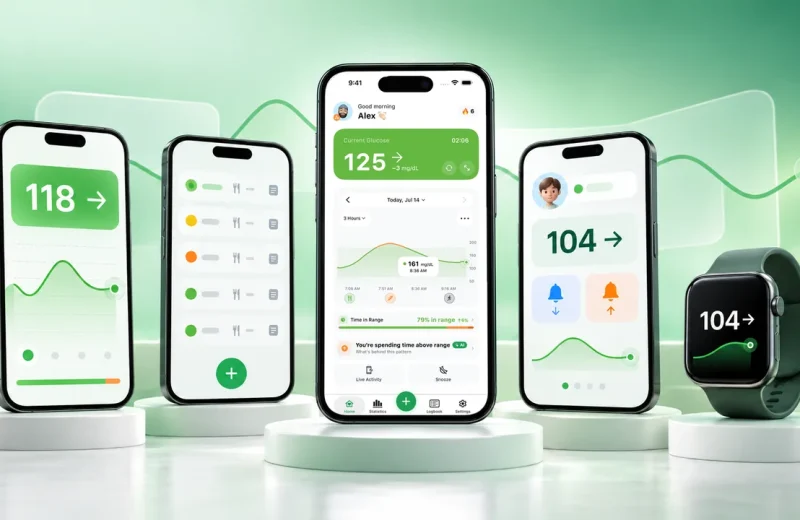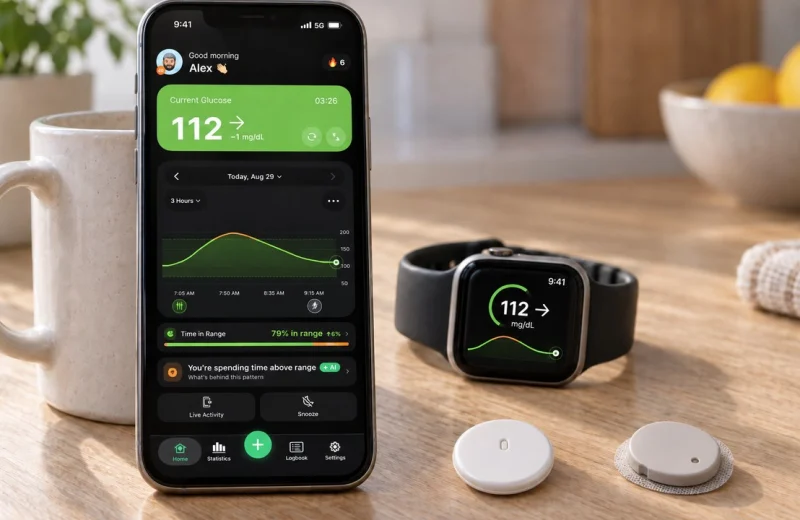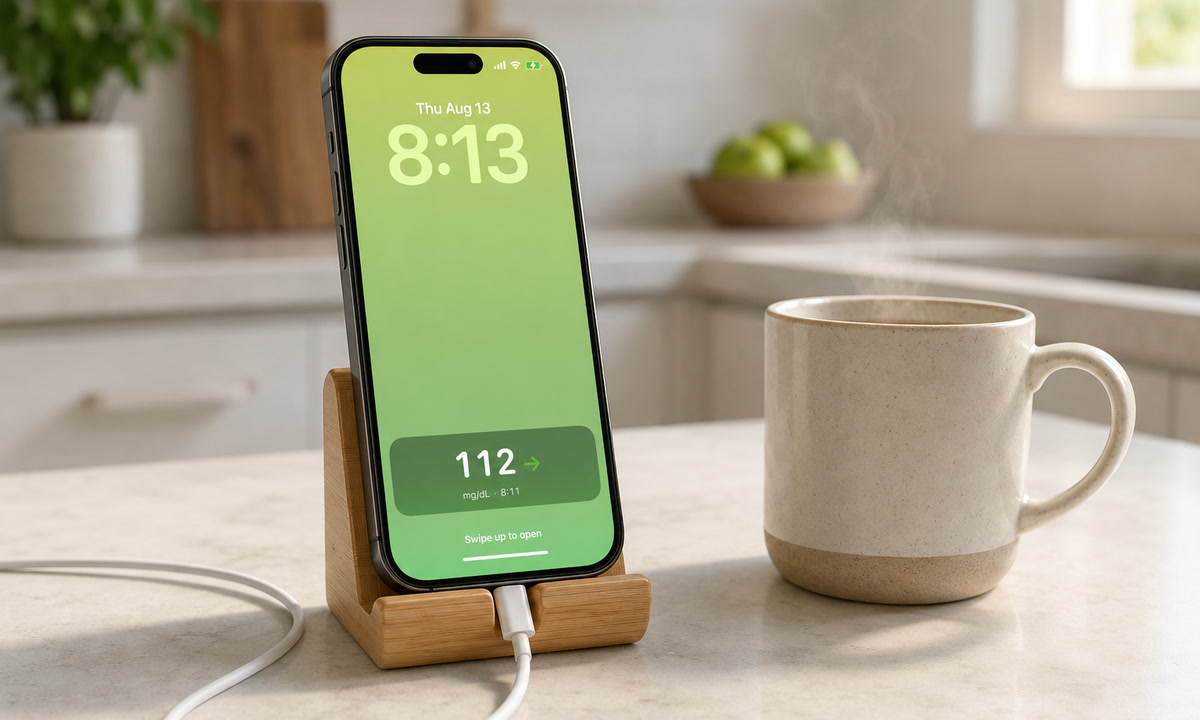
Two iOS features put your CGM number where you can see it without opening anything: widgets and Live Activities. A glucose widget on your iPhone home screen or lock screen shows the latest reading and trend arrow, and iOS refreshes it every few minutes. A Live Activity works faster. It holds an updating card on the lock screen and in the Dynamic Island for as long as it keeps running.
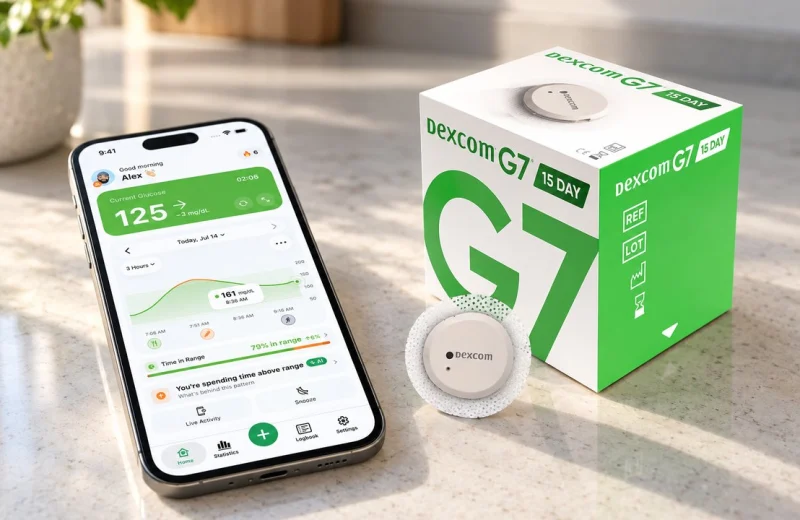
Whether the number comes from a Dexcom G7, a FreeStyle Libre or a Nightscout site, the widget is the same kind of tile. What differs is which app can draw it. Dexcom’s G7 app ships an iPhone widget of its own, Abbott’s app page lists no widget for the Libre apps, and a companion app such as Sugar Sense adds widgets, a Live Activity and its own alerts on top of either source. This guide covers all three paths, the setup steps, and what to check when a tile stops updating.
Both read from an app that already receives your sensor data, so there is nothing to change on the sensor itself. And both are displays only. They stay silent, which is why the alarms in your CGM’s own app still matter.
On this page
Widgets vs Live Activities: what each one does
A widget is a permanent tile that iOS refreshes on its own schedule. A Live Activity is a temporary card the app updates as new readings arrive. iOS normally closes these cards after several hours, but Sugar Sense restarts its card automatically in the background, so once you enable it, it stays on your lock screen until you turn it off. Same data, very different rhythm.
| Widget | Live Activity | |
|---|---|---|
| Where it appears | Home screen, lock screen, Today View, StandBy | Lock screen and Dynamic Island |
| Update timing | iOS decides, usually every few minutes | Close to real time, as readings land |
| How long it lasts | Until you remove it | A few hours, then it ends |
| Best for | A quick number every time you pick up the phone | Watching a meal, a workout or a treatment take effect |
| Battery cost | Very small | Small, but higher than a widget |
| Interaction | Tap to open the app | Press and hold the Dynamic Island to expand |
Think of the widget as a sticker you never have to touch, and the Live Activity as a short live feed you switch on when the next 40 minutes actually matter.
Adding a glucose widget to your iPhone home screen
Touch and hold an empty part of the home screen, tap Edit, then Add Widget, find your glucose app, choose a size and tap Add Widget. The flow is identical across glucose apps, because they all use Apple’s standard widget system.
- Touch and hold an empty area of the home screen until the icons jiggle.
- Tap Edit in the top corner, then Add Widget. On older iOS versions this is a plus (+) button instead.
- Search for your glucose app in the widget list.
- Pick a size, then tap Add Widget.
- Drag the tile where you want it and tap Done.
Small widgets normally show the number and the arrow and nothing else. Medium and large sizes can fit a mini graph of the last few hours, which is worth the space if you like seeing shape rather than a single value. Put the tile in the top row of your first page. A number you have to swipe for is a number you check less often.
Adding a glucose widget to the lock screen
Lock screen widgets sit under the clock and appear the instant the screen lights up. Apple added them in iOS 16, so any iPhone on iOS 16 or later can show one.
- Touch and hold the lock screen until Customize appears, then tap it.
- Select the lock screen you want to edit.
- Tap the widget area below the clock, then Add Widgets.
- Tap or drag your glucose app’s widget into the row. If the row is full, remove one widget first to make room.
- Tap the close button, then Done.
One step many people miss: if a Focus such as Sleep or Do Not Disturb is linked to its own lock screen, add the widget to that lock screen as well. Otherwise the number disappears at exactly the hour the Focus switches on.
One reading, no Face ID, no unlocking. If you use Sugar Sense, the same Libre, Dexcom or Nightscout number it receives feeds both the home screen and lock screen tiles, with high, low and predictive alerts running behind them.
Dexcom G7 widget on iPhone: home screen, Today View and lock screen
The Dexcom G7 app has an iPhone widget of its own. Dexcom’s support page says you need G7 app version 2.4 or later from the App Store. After that update, the widget can go on the home screen, in Today View, where it comes in three sizes, and on the lock screen, using the same Apple steps above.
Two details from the same page matter more than the steps. The G7 app must keep running in the background for the widget to work, so do not swipe it away from the app switcher. And when the widget shows three short dashes instead of a number, it means no sensor reading was available at that moment. iOS limits how many times a widget can update each day, so a missed refresh shows up as dashes and a gap in the trend graph. Tapping the widget opens the G7 app with the current reading.
Following someone else’s Dexcom rather than wearing one? The Dexcom Follow app has its own widget story, covered in our Dexcom Follow guide.
What Dexcom’s pages describe is a widget. The Live Activity, the Dynamic Island card, the StandBy view and the predictive low alert in this article come from a companion app reading Dexcom Share, which is what Sugar Sense does alongside the G7 app, not instead of it.
Dexcom G6 widget on iPhone
The G6 app also has a widget, from iOS 14 onward. Dexcom’s G6 widget page describes a small size only, with a trend graph you can set to 1, 3 or 6 hours by touching and holding the widget and choosing Edit Widget. The page covers the home screen and Today View. It does not mention the lock screen.
Does FreeStyle Libre 3 have an iPhone widget?
Abbott’s own app page lists the FreeStyle Libre apps for iPhone and a Libre app for Apple Watch. It does not list a home screen or lock screen widget, and people asking this question online are usually pointed to a companion app.
That is the path Sugar Sense takes. Connect it through LibreLinkUp, the same sharing app a family member would use to follow you, and the Libre 2, Libre 3 or Libre 3 Plus reading it receives becomes a home screen widget, a lock screen widget and a Live Activity, with the alerts described below running behind them. The chain has one weak link, the sharing connection, which is why the LibreLinkUp checklist further down exists.
How does a Live Activity keep glucose on the lock screen?
The app starts a Live Activity and then pushes each new reading into it, so your value and trend stay on the lock screen without any tapping, and on iPhone models with a Dynamic Island they also show at the top of the display. Touch and hold the island to expand the card, and swipe toward the center to collapse it again.
This is the mode for moments when direction matters more than the number. The hour after a big meal. A session at the gym. The wait after treating a low, when you want to see the curve turn. Because updates land as they arrive instead of on an iOS timer, change shows up sooner.
Live Activities in general expire: iOS gives them a window of roughly eight hours and then closes them. Sugar Sense works around this by restarting its card automatically before the window ends. You may occasionally notice a brief “Restarted to stay up-to-date.” note on the card. That is the refresh doing its job, not a bug.
Why is my glucose widget not updating?
A widget can never be fresher than the data behind it, and iOS deliberately limits how often tiles refresh to protect battery. A lag of a few minutes is expected. A frozen number for half an hour is not.
- The source connection dropped. If cloud sharing stalls, the tile keeps showing the last value it received. Our fixes for LibreLinkUp not updating and for Dexcom sharing problems cover the usual causes.
- Self-hosted data is offline. Readings that arrive through a personal Nightscout site depend on that site being awake and reachable, so check it in a browser before blaming the widget.
- Low Power Mode is on. It throttles background refresh, and widgets are among the first things to slow down.
- Background App Refresh is off. Settings, then General, then Background App Refresh, and make sure your glucose app is switched on.
- Weak internet. LibreLinkUp and Dexcom Share both move readings through the cloud, so with no data and no Wi-Fi there is nothing new to show.
When you need the current value rather than a recent one, open the app or start a Live Activity. And read the arrow, not just the digits: our guide to glucose trend arrows explains how much a single arrow direction is really telling you.
Dexcom widget not working or showing dashes
Start with Dexcom’s own explanation: three short dashes mean no reading was available when the widget last refreshed, and iOS caps daily widget updates, so an occasional set of dashes with a gap in the graph is expected. Tap the widget to open the app. If the dashes stay, check that the G7 app is on version 2.4 or later, that it is still running in the background, and that the sensor itself is connected to the phone. A Sugar Sense widget fed by Dexcom Share has one more link in the chain, the Share connection, and the Dexcom sharing checklist above covers it.
Libre widget not updating
A Libre widget on iPhone always comes through a companion app, so the tile is only as fresh as the sharing chain behind it: the sensor app on the phone, then LibreLinkUp, then the companion app. When the tile freezes, the fix is almost never on the widget itself. Work through the LibreLinkUp checklist above, and if the sharing app shows a fresh reading while the widget does not, open the companion app once so it pulls the newest value.
Privacy, battery and bedside use
Anything on your lock screen is visible to anyone who can see your screen, including the person behind you in line. Nothing about a locked iPhone hides a glucose widget.
Some people are completely relaxed about that. Others prefer the number one layer deeper: keep the tile on the home screen or in Today View, so it takes a swipe and a face rather than a bright screen on a cafe table. Choose deliberately instead of discovering it later.
Battery is rarely the issue. Widgets cost very little because iOS caps their refresh rate, and a Live Activity costs more than a widget but is still built to be efficient.
Glucose in StandBy mode
StandBy turns a charging iPhone into a bedside display for widgets or Live Activities in full screen. Apple’s steps: go to Settings, tap StandBy and make sure it is on, connect the iPhone to a charger, set it down on its side and keep it still, then press the side button. Swipe left or right to move between widgets, photos and clocks. Night Mode tints the screen red in a dark room, models with an Always-On display keep StandBy showing, and other models wake it when you tap the screen or nudge the table. The Display setting offers Automatically, After 20 Seconds or Never.
Sugar Sense’s small widget supports StandBy, so a glucose number at the bedside works out of the box and can stay in view all night. It is still a display. It will not make a sound.
Where a glance tool stops and an alarm starts
Widgets and Live Activities are silent and passive by design. They will not wake you at 3 a.m., interrupt a meeting or vibrate when you drop, so they are not a substitute for CGM alarms.
That distinction is not just a technicality. NIH’s NIDDK explains that a CGM can sound an alarm when glucose goes too high or too low, and those alarms belong to the sensor system itself. Glucose monitoring systems are regulated medical devices, and the alerting behavior the FDA reviewed lives in the manufacturer’s app and receiver, not in a home screen tile.
A companion app can add a second, independent layer on top: its own high and low thresholds, plus predictive low alerts that fire while you are still in range and heading down. Useful, and for nighttime lows genuinely reassuring. But the order stays the same. Alarms first, widgets for the hundred small checks in between.
Frequently asked questions
Can I add Dexcom as a widget?
Yes. The Dexcom G7 app, from version 2.4, and the Dexcom G6 app, from iOS 14, both include an iPhone widget that you add with Apple’s standard steps. Companion apps that read Dexcom Share, Sugar Sense included, offer their own widgets as well.
How do I add the Dexcom G7 widget to my lock screen?
Touch and hold the lock screen, tap Customize, select the lock screen, tap the widget area under the clock, then tap the Dexcom G7 widget and tap Done. Dexcom’s page adds one condition: the G7 app must be running in the background for the widget to update.
Does FreeStyle Libre 3 have a widget?
Abbott’s app page lists no iPhone widget for the Libre apps. Libre readers get one through a companion app connected via LibreLinkUp, which is how Sugar Sense shows a Libre 3 number on the home screen and lock screen.
Is there a Dexcom G6 widget?
Yes, on iOS 14 or later. Dexcom describes a small-size widget with a trend graph of 1, 3 or 6 hours for the home screen and Today View.
Can my iPhone measure glucose?
No. An iPhone has no glucose sensor. The number in a widget comes from a CGM sensor on your body, through its app. The same is true of the watch, as our guide on whether an Apple Watch can measure blood sugar explains.
Can I see glucose on my lock screen without unlocking my iPhone?
A lock screen widget or a running Live Activity appears the moment the screen wakes, with no passcode and no Face ID. That makes it the fastest way to check discreetly in public, and also the reason to think about who else can read your screen.
Why does the widget number differ from the app?
Usually because the app pulls the newest reading on open while the tile is still showing one from the last refresh window, a gap of a few minutes at most. If the two disagree by a lot, or the tile is far behind, the sharing connection is the thing to check.
Can I put glucose on my Apple Watch too?
Most glucose apps offer a watch complication, so the same reading sits on your watch face and you skip the phone entirely. If a Dexcom complication freezes, Dexcom G7 not updating on Apple Watch covers the fixes in order. Our guide to CGM on Apple Watch walks through how a complication behaves next to iPhone widgets.
This article is general education about iPhone features, not medical advice. A widget or a Live Activity is a display: it can lag by minutes, it stays silent, and it never replaces your CGM app or the alarms built into your device. Decisions about treatment, targets or medication belong with your own healthcare team, and the limits of what a companion app can do are spelled out separately.