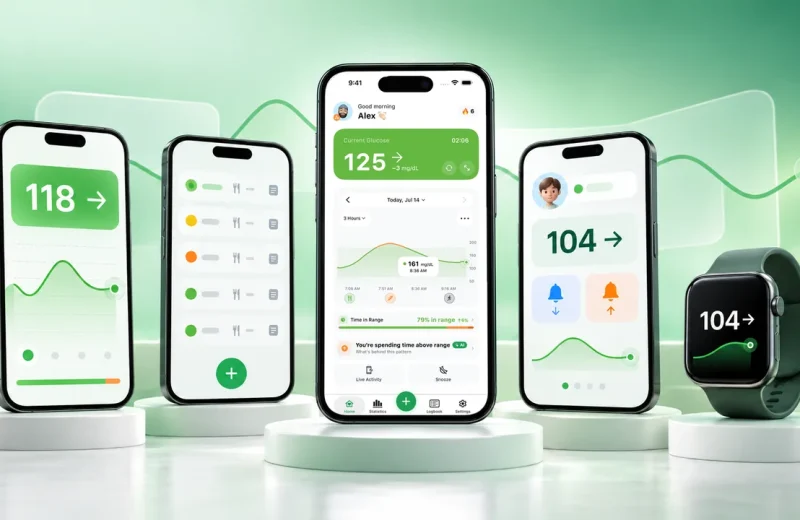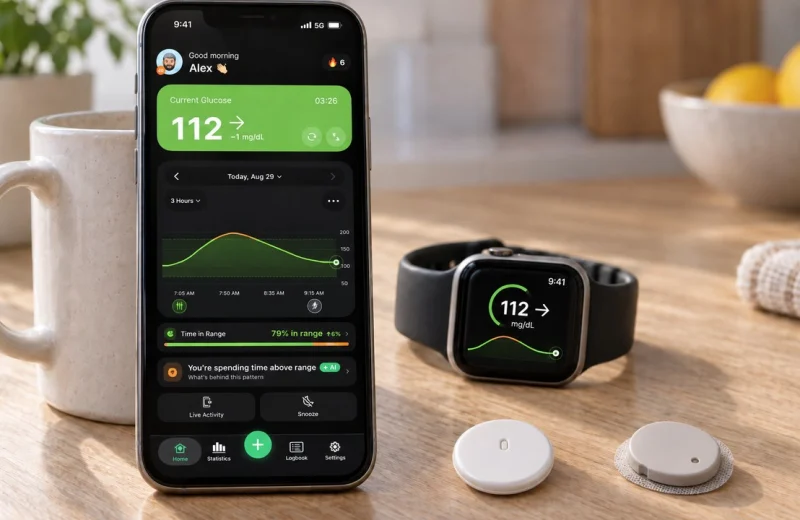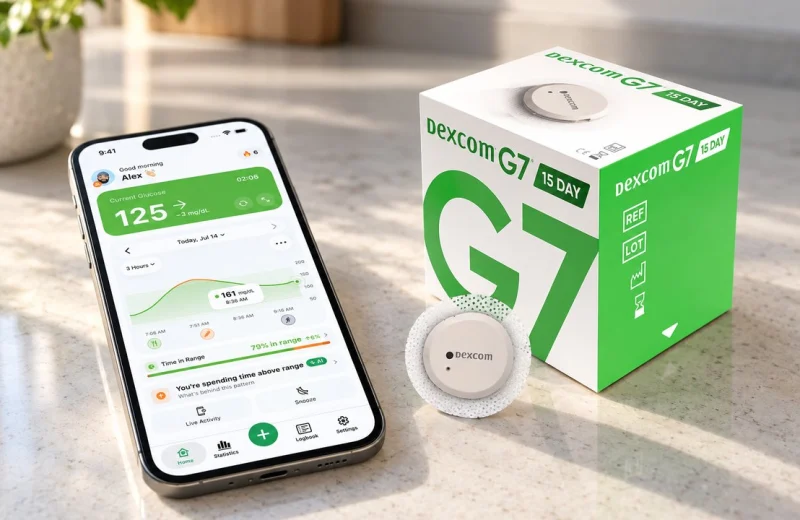
Your hands are covered in flour, the phone is charging in the bedroom, and you want to know whether that big bowl of pasta is catching up with you. A quick turn of the wrist answers it.
Yes, Dexcom works on Apple Watch, and so do FreeStyle Libre and Nightscout. You pair your sensor with an iPhone app that has a watch app and a watch face complication, and your latest number, trend arrow and high or low alerts land on your wrist as new readings arrive. Dexcom G7 goes one step further with Direct to Apple Watch, where the watch talks to the sensor itself.
For anyone with type 1 or type 2 diabetes wearing a CGM, and for the parents and partners following someone else’s glucose, the glance matters most when the phone is out of reach: cooking, training, meetings and the middle of the night. Below: how the data reaches the watch, the setup for each brand, whether alerts really buzz your wrist, and how to keep the number trustworthy.
The parts most people get wrong:
- The watch has no glucose sensor inside it. In almost every setup it mirrors what your iPhone already has.
- A face complication gives you the number and arrow without opening anything.
- Alerts can buzz your wrist, but they ride on top of your phone connection, so they are a second layer, not the primary one.
- Leave your CGM’s own app and alarms switched on. Always.
On this page
Why your Apple Watch cannot read the sensor on its own
No Apple Watch model to date has a blood sugar sensor inside it (our Apple Watch blood sugar explainer covers why not yet), and with one exception covered at the end of this section, none of them can scan or connect to a CGM transmitter on their own. Your glucose data starts under your skin and takes a short trip before it reaches your wrist.
The chain looks like this:
- The sensor measures glucose in the interstitial fluid just below the skin surface, which the National Institute of Diabetes and Digestive and Kidney Diseases describes as producing a new value every few minutes rather than one number at a time.
- Your phone or reader picks that value up over Bluetooth or NFC.
- A companion app on the iPhone passes it to the paired watch.
So your wrist reading is never fresher than the data your phone holds. Three links in a chain means three places it can stall. If the sensor-to-number part is still fuzzy for you, our explainer on what a continuous glucose monitor is and how it works covers the biology and the lag.
One exception is worth knowing. Dexcom’s G7 app offers a Direct to Apple Watch mode, where the watch keeps its own Bluetooth connection to the sensor after setup, so readings and alerts can reach your wrist even when the phone is out of range. You still need the iPhone for setup, sharing and most other features, and every other route on this page runs through the phone.
What shows up on your wrist, and what does not
Two things, usually: a complication and a watch app.
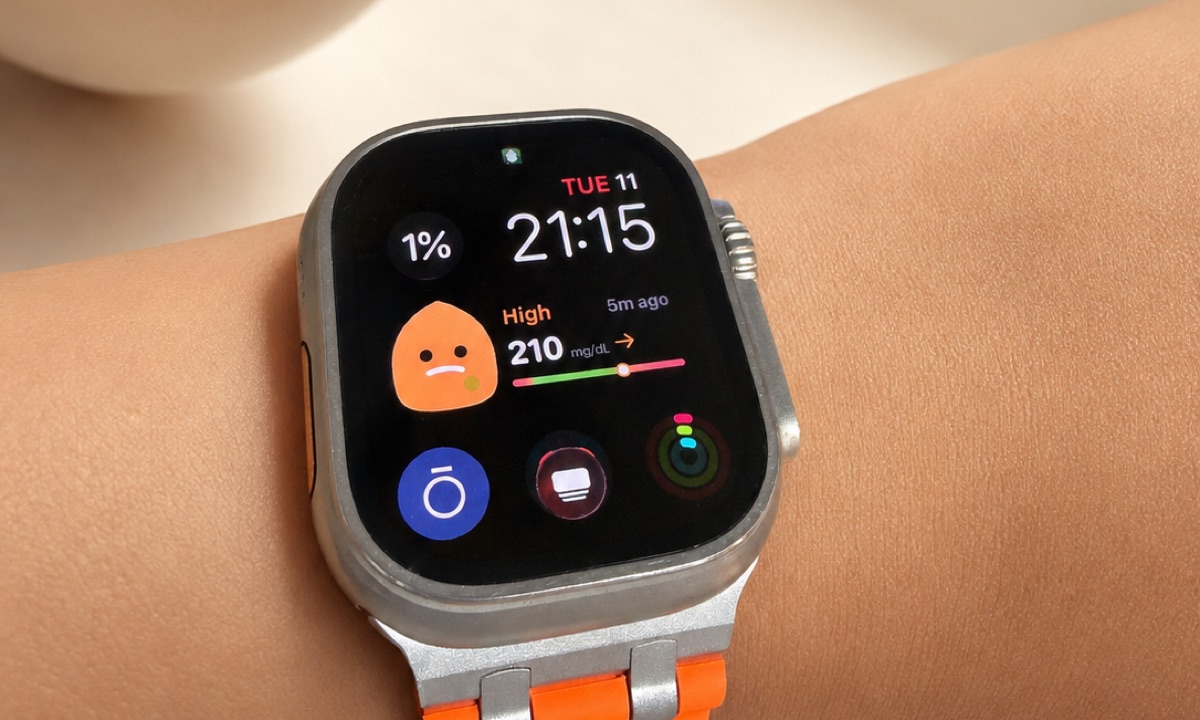
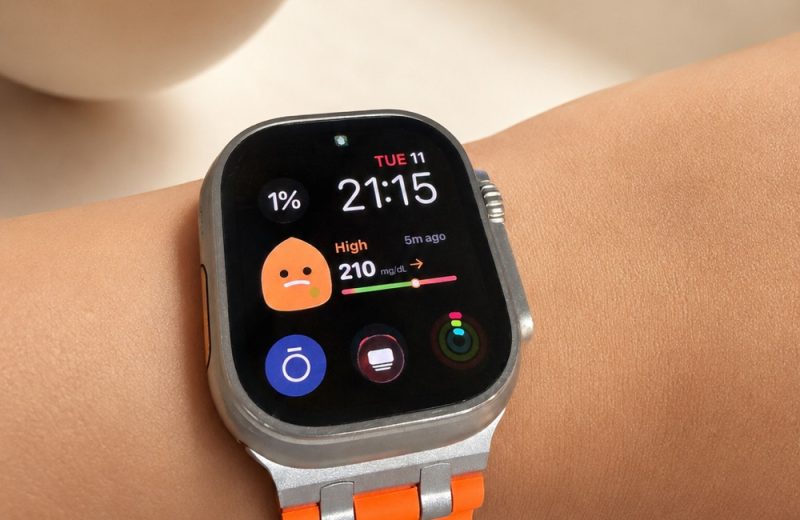
A complication is the small block of information you add to almost any watch face. For glucose it typically carries your current value in mg/dL or mmol/L, a trend arrow, and often a color cue for in range, low or high. That is it. No graph, no history, just the two facts you need at a glance.
The arrow deserves as much attention as the number. A reading of 96 mg/dL (5.3 mmol/L) with a flat arrow is a completely different situation from 96 with a diagonal down arrow, which in Dexcom’s own arrow definitions means falling 1 to 2 mg/dL per minute. Fifteen minutes later that same 96 could be in the mid 70s or below. If arrows still feel abstract, read understanding glucose trend arrows on your CGM.
Open the full watch app and you generally get more: a recent graph, the last reading with a timestamp, and some quick stats. I use the complication ninety percent of the time and the app when a number surprises me and I want to see the shape of the last hour.
Mine sits on the Modular face of an Apple Watch Ultra 2, with our own mascot in the middle of the dial. A small thing, but I glance at it more often than I ever did at a plain block of text.
Dexcom on Apple Watch: Direct to Watch, the complication and Follow
Dexcom ships a native watch app with both its G6 and G7 apps, and the G7 app offers watch face complications. Add one the usual way: press and hold the watch face, tap Edit, pick a complication slot and choose the Dexcom G7 app. The G6 app mirrors the phone the same way.
Direct to Apple Watch is the G7-only feature that takes the phone out of the chain. Dexcom’s requirements page asks for an Apple Watch Series 6 or later (the SE 2nd generation and every Ultra count) on watchOS 10 or later, an iPhone on iOS 17 or later, and G7 app version 2.2.1 or later. Setup lives in the G7 app under Connections, then Direct to Watch. The sensor reaches the watch over Bluetooth, so no cellular plan is needed, and the phone is still required for setup and sharing.
Followers get a watch too. The Dexcom Follow app has an Apple Watch app (watchOS 6 or later) with its own complication; it receives shared data only, so a parent can feel the alert without holding the phone all evening. Blank complications on Dexcom are common enough that we wrote a whole piece on it: Dexcom G7 Apple Watch not updating.
FreeStyle Libre on Apple Watch
Abbott’s Libre app now has an Apple Watch app of its own, and Abbott’s support page sets the rules: the watch mirrors what the phone shows, so the iPhone has to stay within range of both the sensor and the watch, and it needs an Apple Watch Series 4 or later on watchOS 10. Which Abbott app you have depends on your sensor and country, so check the App Store listing for an Apple Watch section.
The other route, and the one most companion apps use, is LibreLinkUp: turn on sharing in the Libre app, then a viewer app reads that stream and puts it on the iPhone and the watch. Worth knowing at the sensor end: Libre 3 and Libre 3 Plus push a value every minute rather than every 5, though what your wrist shows still depends on how often the app in the middle refreshes. Neither route works with the phone out of range, because Libre has no Direct to Watch equivalent. When the stream dries up, our FreeStyle Libre troubleshooting guide covers the usual suspects.
Nightscout on Apple Watch
If you host your own site, the Nightscout documentation describes it as a self-hosted cloud service you control. That is why it appeals to people mixing devices or running an older pump setup. A viewer app pulls from your site and shows the value on your wrist. Setup snags live in our Nightscout setup and troubleshooting guide.
Our own app, Sugar Sense, is the companion side of this for all three of those sources: the watch complication, the watch app and the wrist alerts, with the monitoring part free.
Do low and high alerts actually reach the watch?
They do, and for plenty of people that is the whole reason to bother. A tap on the wrist cuts through a lot: a phone face down in another room, a loud kitchen, a bedside table you cannot reach. It also makes a discreet check possible mid-meeting or between sets, when pulling out a phone is awkward.
Nights are the reason I care about this at all. Seeing the number was never my problem: the problem was that one alarm at 3 a.m. did not always wake me. A second layer that taps my wrist, plus a heading-low warning that fires while I am still in range, is what changed those nights for me.
Some apps add a predictive heading-low alert that fires while you are still in range but dropping fast, which buys you a few minutes to eat something before the low actually arrives. Our piece on why real-time glucose alerts matter goes deeper into the safety case.
Now the honest caveat. Companion alerts travel through your phone, your Bluetooth connection and watchOS notification settings, so a dead battery, a dropped connection or an aggressive Focus mode can silence them. That is exactly why your CGM device’s own alarms stay on as the primary safety net.
Alarm fatigue and nighttime lows pull in opposite directions. People tighten their thresholds after a scary night, then get buzzed so often during the day that they stop reacting, the cycle a 2013 review of diabetes device alarms called “Turn it off!”. A watch can help with that balance, because a silent wrist tap at 3 a.m. is easier to live with than a phone siren, but the thresholds still need thought. If your alerts go quiet when your phone is muted, our guide to glucose alarms that work in silent mode explains the settings involved.
Keeping the number on your wrist trustworthy
A stale reading is worse than no reading, because you act on it. Run through this list when your complication starts misbehaving:
- Keep your phone within range. The watch is a mirror. Leave the phone in the car and the complication goes empty.
- Restart both devices when data sticks. A quick restart of the iPhone and the watch clears most temporary glitches.
- Allow notifications on both devices. Check the app’s permissions on the iPhone and in the Watch app, then confirm no Focus mode is muting it.
- Leave Bluetooth on and stop force-quitting. Swiping the CGM app away kills its background connection.
- Charge the watch on a schedule. Overnight or during a shower, so it never dies mid-afternoon when you are counting on alerts.
- Re-add the complication after watchOS updates. Big updates sometimes reset custom faces, and people assume the app broke.
- Check the timestamp, not just the number. If the last reading is 40 minutes old, treat it as history.
The payoff for that maintenance is more glances per day, and glances add up. Checking at the gym, mid-meeting or while cooking means you catch drifts earlier, which is the practical mechanism behind a better Time in Range. The 2019 International Consensus on Time in Range set the standard adult target of 70 to 180 mg/dL (3.9 to 10.0 mmol/L) for at least 70 percent of the day, published in Diabetes Care, and our Time in Range explainer breaks down what that means day to day.
The gym is where this pays off for me. A glance between sets catches a drop long before I would have felt it.
For families the wrist matters differently. A parent following a child can feel the alert without holding a phone all evening. That is the setup we describe in our caregiver’s guide to remote glucose monitoring.
Frequently asked questions
Which Apple Watch works with Dexcom G7?
Any recent Apple Watch can mirror the G7 phone app. Direct to Watch is stricter: a Series 6 or later, an SE 2nd generation or later, or any Ultra, on watchOS 10 or later, paired with an iPhone on iOS 17 or later and G7 app 2.2.1 or later, per Dexcom’s compatibility list.
How do I add Dexcom to my Apple Watch face?
Install the G7 app on the watch through the Watch app on your iPhone, then press and hold the watch face, tap Edit, swipe to the complications page, tap a slot and choose Dexcom G7. The same steps add a Sugar Sense or Dexcom Follow complication. If the slot shows nothing, open the watch app once so it can fetch its first reading.
Does Dexcom Follow work on Apple Watch?
Yes. The Follow app has an Apple Watch app on watchOS 6 or later, with a complication that shows the shared reading continuously. It is receive-only: sharing is set up and managed on the phones, and the watch simply displays what the follower’s iPhone receives.
Can I use Libre 3 on Apple Watch without my phone?
No. Abbott’s own watch app mirrors the phone and needs the iPhone within range of both the sensor and the watch, and the LibreLinkUp route runs through the phone and the cloud. Only Dexcom G7 offers a direct sensor-to-watch link today.
What CGM works with Apple Watch?
Dexcom G6 and G7 through Dexcom’s own apps, with G7 adding Direct to Watch; FreeStyle Libre through Abbott’s watch app or a LibreLinkUp companion app such as Sugar Sense; and Nightscout through any companion app that reads your site. In every case the watch shows what the phone has, so the sensor’s own app stays installed and running.
How often does glucose update on Apple Watch?
Most CGMs generate a new reading about every 5 minutes, and the complication refreshes when that reading lands on your phone. Libre 3 and Libre 3 Plus are the exception at the sensor end: Abbott streams a value every minute. How often that reaches your wrist still depends on the app in the middle, so a delay of a minute or two is normal either way.
Do I need my iPhone nearby for the watch to show glucose?
The watch has no sensor connection of its own and depends on the paired iPhone for data, so in nearly every setup, yes. Leave the phone behind or let it go offline and your wrist reading freezes until the two reconnect. The one exception is Dexcom G7’s Direct to Apple Watch mode, which keeps working without the phone once it is set up.
Can an Apple Watch replace my CGM receiver or phone app?
A convenient second screen, not a replacement. Your CGM’s own app and built-in alarms remain the primary and most reliable source of both data and safety alerts, so keep them active even if you rarely look at them.
Which Apple Watch models support glucose complications?
Current and reasonably recent models running an up to date watchOS generally work. The published floors are Series 4 on watchOS 10 for Abbott’s Libre watch app and Series 6 on watchOS 10 for Dexcom’s Direct to Watch; companion apps list their own, so check the requirements of whichever app you plan to use.
Does a glucose complication drain the watch battery?
The watch wakes to receive and display new readings all day, so yes, some extra drain is normal. On my own Ultra 2 I have never caught it costing me a meaningful part of a day, but that is the biggest battery Apple ships, so on a smaller Series watch expect it to show more. Charging during a shower or overnight keeps the watch alive through the hours you actually rely on alerts.
Everything above is general education from someone who wears a sensor daily, not medical advice. A watch complication is a convenience layer: it can lag, go blank or miss an alert, so keep your CGM’s own app and alarms running as the thing you actually trust, and take any question about treatment, doses or medication to your own clinician. Our full disclaimer spells this out.