If Dexcom is not working on your Apple Watch, a stale number on the wrist usually means the iPhone lost the sensor, not the watch losing the phone. So open the Dexcom G7 app first. If it shows a live reading, the break sits between phone and watch: restart the watch, then remove and re-add the complication.
One nuance changes that order. If you set up Dexcom’s Direct to Apple Watch mode, the sensor talks to the watch itself, so the watch becomes the thing you check, the thing you move closer to your body, and the orange phone icon beside the reading becomes the first thing to look for. That mode has its own section below.
On this page
Where the number on your wrist comes from
In the standard setup, the G7 sends a new reading about every 5 minutes to your iPhone over Bluetooth, and the Apple Watch just mirrors what the phone already holds. That is why a frozen watch face is so often a phone problem wearing a disguise.
Every CGM works the same basic way. A sensor under the skin measures glucose in the fluid between cells and pushes the result to a display device, which can be a receiver, a phone or a watch, as the National Institute of Diabetes and Digestive and Kidney Diseases describes it. Add a watch and you add one more link to the chain. More links, more places to break.
Why does the Dexcom G7 stop updating on Apple Watch?
Most cases trace back to one of six things, and only two of them are actually about the watch.
- The iPhone lost its Bluetooth link to the sensor. No fresh data to pass along, so the watch shows the last thing it heard.
- The watch and phone lost each other. Distance, a Bluetooth hiccup, or Airplane Mode left on after a flight.
- A background setting paused the app. Background App Refresh switched off, or Low Power Mode throttling updates.
- An iOS or watchOS update reset something. Permissions get cleared, or you quietly get logged out.
- Direct to Watch fell back to the phone. An orange phone icon next to the reading means the watch lost the sensor and is copying from the iPhone, so the phone has to be nearby again.
- The sensor is still warming up. A new G7 has no readings to give yet, and that is not a fault.
So check the phone before you blame the wrist. It saves a lot of pointless restarting.
Work through the fixes in this order
Run these top to bottom and stop when the number moves. Most people are back to live data inside five minutes.
1. Look at the iPhone app
Open Dexcom G7 on the phone. Current reading? The sensor and phone are fine, and the fault sits between phone and watch. Stale reading, or a signal loss message? Fix that first, because your watch cannot display data your phone never received.
2. Confirm Bluetooth and close the distance
Bluetooth on, phone on you. Dexcom lists a working range of about 20 feet (6 meters) with nothing in between, and your own body counts as an obstacle. A phone in a back pocket with the sensor on the opposite arm is a classic dropout.
3. Restart the Apple Watch
Press and hold the side button until the sliders appear, tap the power icon and drag Power Off. Give it a few seconds, then hold the side button until the Apple logo shows. Apple notes that the watch cannot be restarted while it is charging, so take it off the charger first. Then give it a couple of minutes to find the phone again. This alone clears most frozen complications.
4. Remove and re-add the complication
Touch and hold the watch face, tap Edit, swipe to the complications screen, tap the Dexcom slot, turn the Digital Crown to swap it for something else and press the Crown to save, exactly as Apple’s complication guide describes. Then repeat the steps to put Dexcom back. Now the watch has to request a fresh feed instead of redrawing a cached one. Dexcom offers five complications on select faces, and if the app never landed on the watch at all, install it from the Watch app on the iPhone, under Available Apps.
5. Check Background App Refresh and Low Power Mode
On the iPhone: Settings, General, Background App Refresh, and confirm Dexcom is switched on. Dexcom’s own Signal Loss page says a phone in Low Power mode turns off Bluetooth and causes Signal Loss, and Apple says Low Power Mode on the watch can delay notifications, so turn both off while you are troubleshooting.
6. Confirm the pairing and Apple ID
The watch and phone need to be paired and signed in to the same Apple ID. If you recently restored a device or changed accounts, this link breaks silently and nothing on screen tells you why.
7. Reinstall, last
Restart the iPhone, then delete and reinstall the Dexcom G7 app. Have your Dexcom login ready. Reinstalling does not end or waste the sensor you are wearing, and there is no reason to pull a sensor off your arm to fix software. Before you delete anything, note your sensor pairing code as well: you will find it in the app under Connection, then Sensor, or printed on the applicator. The reinstalled app may ask for it to reconnect to the sensor you are wearing.
One habit prevents the next round. Dexcom asks you to check its compatibility page before any iOS or watchOS upgrade, to update manually rather than automatically, and to verify the app’s settings afterward, because an automatic update can change settings or shut the app down, and Dexcom’s testing of a new OS version can take several weeks.
If the phone itself keeps dropping the sensor, the problem is upstream of the watch entirely, and our Dexcom CGM troubleshooting guide covers sensor errors and repeated signal loss in more depth.
Direct to Watch not working: the orange phone icon and Dexcom’s four rules
Direct to Watch gives the G7 sensor its own Bluetooth link to the watch, and it has its own failure signature. Dexcom’s setup page explains the orange phone icon: when it appears beside your reading, Direct to Watch is temporarily not working, the watch is copying from your phone instead, and you need to keep the phone nearby until the icon disappears. No icon means the watch is hearing the sensor directly.
Four rules from the same page decide whether the mode keeps working. Settings copy only while the watch app is open with the phone nearby, so after changing an alert on the phone, open the app on the watch. Every new sensor has to be paired with the watch again, and the phone app prompts you at sensor start; a phone is always required for that step. A sensor can be paired with one smartwatch only. And Mirror iPhone Alerts must stay on in the Watch app on the phone, or you get no alerts on the wrist in either mode.
One more Dexcom footnote worth knowing: with Direct to Watch active, Share and Follow keep flowing only while the watch has a Wi-Fi connection, which is why a follower may see a gap during a run with the phone left at home.
Dexcom G7 not pairing with Apple Watch
Check the requirements before anything else. Dexcom lists an Apple Watch Series 6 or later on watchOS 10 or later, an iPhone on iOS 17 or later, and G7 app version 2.2.1 or later. Then start from the phone: Connections, then Direct to Watch, and follow the prompts. If the watch app never appeared, open the Watch app on the iPhone, find Dexcom G7 under Available Apps and tap Install. Pairing is offered when you start a new sensor, so the cleanest moment to set the mode up is a sensor change, with the phone in your hand.
Warm-up, short gaps, and how often the G7 should refresh
The Dexcom G7 warms up for 30 minutes after insertion and then delivers a reading roughly every 5 minutes. A blank wrist right after a sensor change is warm-up, not a broken complication. But if the number on your watch face has not moved in more than 10 to 15 minutes while the phone is current, that is stale and worth acting on.
Dexcom’s own timing on the phone display matches that instinct. The last reading stays on screen for 10.5 minutes; if nothing new arrives it changes to a dash, and after that the Signal Loss message appears. Once you fix the cause, a new value can take up to 5 minutes, up to 24 hours of missed readings fill back into the graph, and Signal Loss lasting more than 30 minutes is Dexcom’s threshold for calling technical support.
Here is what the math looks like across a real day. A reading every 5 minutes is 288 readings in 24 hours. Say your phone sat charging in the kitchen for two hours while you were in the garden: that is about 24 readings gone, roughly 8 percent of the day. The 2019 International Consensus on Time in Range suggests judging your time between 70 and 180 mg/dL (3.9 to 10.0 mmol/L) over 14 days with about 70 percent of possible readings captured, so a single thin afternoon barely moves the needle. A daily habit of leaving the phone in another room does.
Phone relay, direct to watch, or a follower feed
Three different paths can put a G7 number on an Apple Watch, and they fail in different ways. That is why the fix that worked for your friend may do nothing for you.
| Setup | What it needs | What breaks it |
|---|---|---|
| Dexcom G7 app on iPhone, complication on watch | Phone within Bluetooth range of the sensor | Phone left behind, Background App Refresh off |
| Direct to Apple Watch (sensor paired to the watch) | A supported Apple Watch and watchOS version, per Dexcom’s compatibility list | Watch out of range of the sensor, or the sensor never paired with the watch (the orange phone icon) |
| Dexcom Follow on a follower’s watch | Internet on the uploading phone and the follower’s phone | No data connection on either end |
| Companion app reading Dexcom Share | Share turned on, internet on both ends | Share switched off, cloud or Wi-Fi outage |
Sugar Sense sits in that last row. It reads your Dexcom data through Share and puts a live number, trend arrow and your own high and low alerts on the watch face. Some people like having a second, independent screen next to the official app. You can see how it works here. If the Share side confuses you, Dexcom Share vs Dexcom Follow untangles who sees what, and CGM on Apple Watch covers wrist options more broadly.
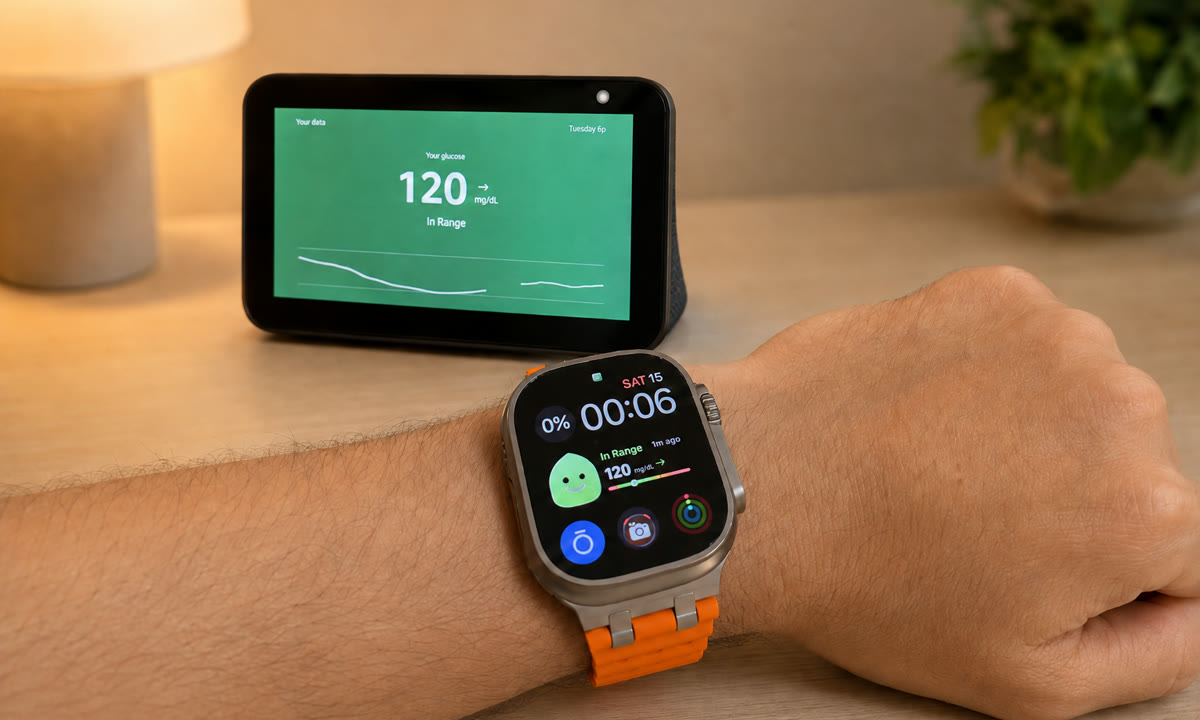
I keep glucose in the middle of the Modular face on an Apple Watch Ultra 2, with our mascot in the center, and I have never caught that complication costing me a meaningful part of a battery day. That is the biggest battery Apple ships, though, so do not read it as a promise for a smaller watch. On the days I wear a G7 rather than my usual Libre, my instinct when the wrist number looks old is still the same: glance at the phone before touching the watch.
A short checklist to keep readings flowing
- Keep the iPhone charged and physically near you, especially overnight.
- Bluetooth on for both devices, Airplane Mode off after travel.
- Background App Refresh enabled for Dexcom.
- Skip Low Power Mode during the hours you rely on alerts.
- Keep Mirror iPhone Alerts on in the Watch app on the phone, and open the watch app once after changing any alert on the phone.
- Check Dexcom’s compatibility page before every iOS or watchOS update, then open the app and re-check permissions afterward.
- Restart the watch weekly if complications freeze often.
Frequently asked questions
Why isn’t Dexcom working on my Apple Watch?
In the standard setup the watch only shows what the iPhone has, so the usual answer is that the phone lost the sensor or the watch lost the phone. Open the G7 app on the phone first; if it is current, restart the watch and re-add the complication. In Direct to Watch mode, look for the orange phone icon and bring the phone close until it clears.
Does the Dexcom G7 sync with the Apple Watch?
Yes, two ways. The G7 watch app and its five complications mirror the iPhone app, and Direct to Watch lets the sensor connect to a supported watch on its own Bluetooth link. Both need the iPhone app installed and signed in.
Why is Direct to Watch not working on my Dexcom G7?
Check for the orange phone icon first: it means the watch lost the sensor and is copying from the phone. Then run Dexcom’s rules: the watch meets the Series 6, watchOS 10 and app 2.2.1 requirements, the current sensor was paired with the watch at sensor start, the sensor is paired with only this one watch, and Mirror iPhone Alerts is on.
Can I use the Dexcom G7 with my Apple Watch without my phone?
With Direct to Watch, yes for the readings and alerts on your wrist, once a sensor has been paired with the watch. A compatible iPhone is still required to pair each new sensor, and Share and Follow from the watch need it to be on Wi-Fi.
Where is the Dexcom G7 pairing code?
In the G7 app under Connection, then Sensor, and printed on the sensor applicator. Note it before reinstalling the app or moving to a new phone; Dexcom’s phone-transfer guide also asks you to wait at least 15 minutes before a new phone connects to the sensor.
Should I update iOS or watchOS before Dexcom confirms compatibility?
Dexcom says no: check its compatibility page first, update manually rather than automatically, and verify the app’s settings after the update. Its testing of a new operating system version can take several weeks.
Why does my Apple Watch show old glucose when my iPhone is current?
That pattern points to a frozen complication or a paused watch app rather than a sensor problem. Restart the watch, remove and re-add the Dexcom complication, then confirm both devices are paired and on the same Apple ID. Data usually returns within a few minutes.
Does the G7 need my iPhone nearby to update the watch?
In the common setup the watch only mirrors what the phone receives, so yes, keep it close. With Dexcom’s Direct to Apple Watch mode the sensor can reach a supported watch on its own. Even then, a phone nearby is the most predictable arrangement.
Will reinstalling the Dexcom app end my current sensor?
Deleting and reinstalling the app does not stop your session or waste the sensor. You log back in and the sensor keeps running its wear period. So never peel a working sensor off your arm to solve a software problem.
Is a five minute gap something to worry about?
Short gaps happen to everyone, and the system fills them in once the connection returns, so one missing dot is not a fault. Repeated gaps of an hour or more, night after night, point to a range or background settings issue worth fixing.
Before you act on a number: this article is general education, not medical advice. A watch complication or companion app is a convenience layer that can lag or drop out, and it never stands in for your Dexcom G7, its readings or its alarms. If how you feel and what you see disagree, check with your CGM or a finger stick, and keep every treatment and medication decision with your healthcare team. Our full disclaimer spells out the rest.