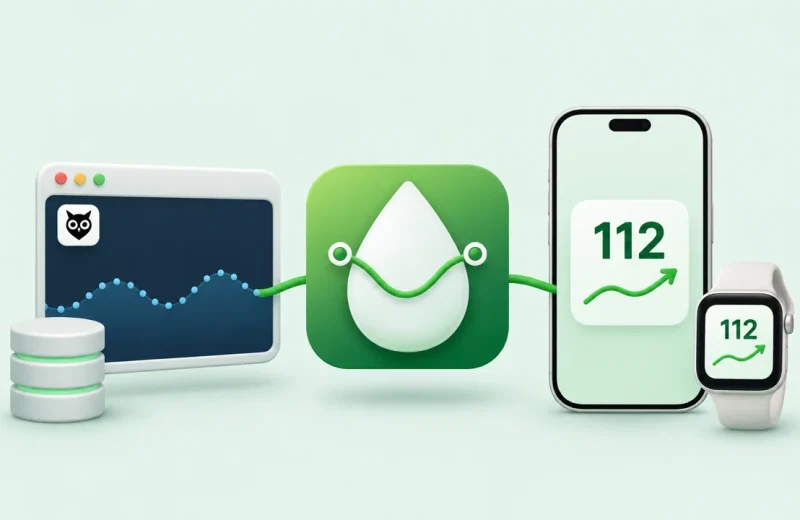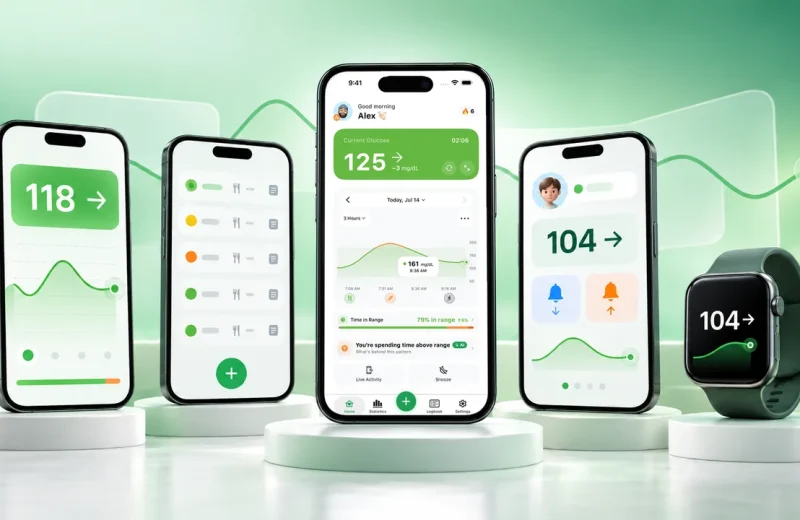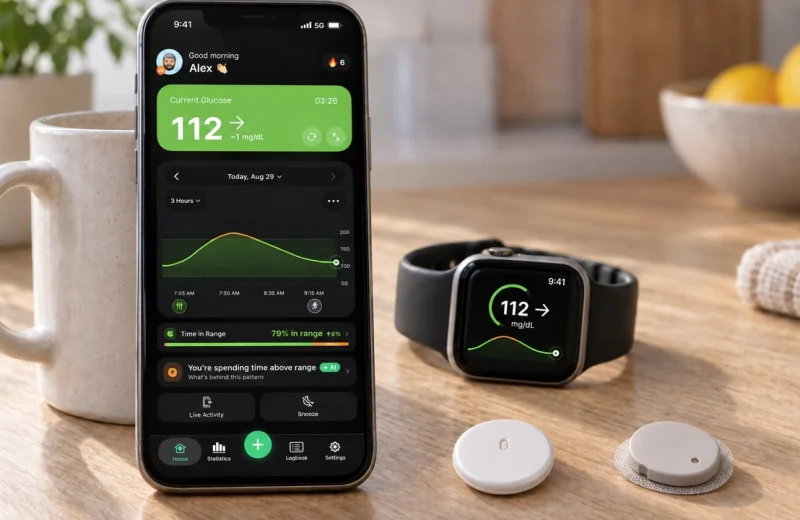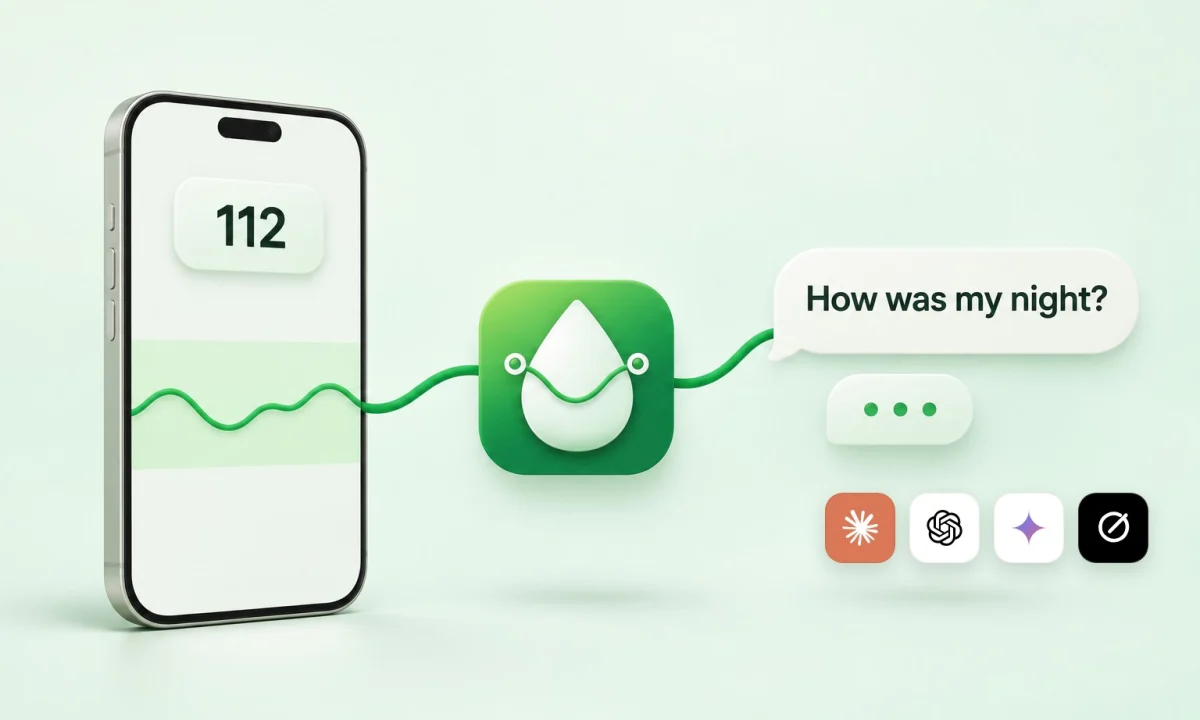
Quick answer. As of November 2026, Sugar Sense can connect your CGM data to the AI assistant you already use. Claude, ChatGPT and Grok read your latest glucose, your trend, your LogBook, your statistics and your overnight report through a read-only connector built on the open Model Context Protocol (MCP). You approve the connection once, in your own Sugar Sense account, and you can end it at any time. Sugar Sense hands over data only, never dosing advice: whatever the assistant tells you comes from the assistant. The connector is part of Sugar Sense Premium. Without Premium, a free Copy for AI button puts a 14-day summary on your clipboard for any chat.
This guide explains what the connection does, what the assistant can and cannot read, how to set it up in Claude, ChatGPT and Grok in about two minutes, what to ask once it works, and what happens to your data. The step-by-step guide with screenshots lives at app.sugarsense.io/app/ai, the one-page overview at sugarsense.io/ai; this article is the long version.
On this page
Why connect your CGM data to an AI assistant at all?
Most people with diabetes who use ChatGPT or Claude already paste numbers into the chat: a screenshot of the graph, a list of readings, a photo of the LogBook. It works, and it is tedious. The screenshot is out of date the moment you take it, the chat cannot see yesterday, and every question starts with a new paste.
A connection replaces the paste. The assistant asks Sugar Sense for your data when it needs it, in the background, with your permission: the reading from a minute ago, the last seven days, the meal you logged at lunch, the overnight report the app showed you this morning. You ask in plain language and the assistant answers from the real numbers of your continuous glucose monitor, in your unit, against your own target range.
The point of doing it this way is where the conversation happens. The data stays yours, the reading stays read-only, and the conversation happens in the assistant you chose, under that assistant’s terms. Sugar Sense gives the numbers; it never tells you what to do about them.
How does the Sugar Sense AI connector work?
The connector is a remote MCP server at api.sugarsense.io/mcp. MCP, the Model Context Protocol, is the open standard that Claude, ChatGPT, Grok and most other assistants use to reach outside data sources: a Claude connector, a ChatGPT MCP server and a Grok custom connector are the same thing under three names. Sugar Sense is listed in Claude’s connectors directory; in ChatGPT and Grok you add the address yourself, which takes a minute.
When you add it, the assistant sends you to a Sugar Sense page in your browser. You sign in with the same account you use in the app, you choose whose data the assistant may read (your own, or someone you follow in the Care Circle), and you tap Allow. From then on the assistant holds a token that lets it read, and only read, through seven tools. It never receives your password, your Dexcom or LibreLinkUp login, your Nightscout secret or any other credential.
Every read goes through the same code paths the app uses, so the assistant sees exactly what you see: the same readings, the same 15-minute freshness rule, the same unit, the same thresholds, the same Morning Report sentence. There is no second set of numbers for the AI.
What can ChatGPT or Claude read from Sugar Sense in real time?
Seven read-only tools, each one a question the assistant can ask Sugar Sense:
- Your profile: your glucose unit (mg/dL or mmol/L), your target range and alert thresholds, your glucose source (Dexcom, FreeStyle Libre via LibreLinkUp, Nightscout, or a manual log) and your time zone, so every answer uses your numbers and your clock.
- Your current glucose: the latest reading, the trend arrow, the change since the previous reading, whether it is in range and how old it is. A reading older than 15 minutes is reported as your last reading with its age, never as current.
- Your readings: the glucose history for a window you name, so the assistant can look at an afternoon, a night or a week.
- Your daily statistics: time in range, average, lows and highs per day, the same figures as the Statistics screen.
- Your LogBook: meals with carbs and names, medication records, notes, activity and meter checks, each with the glucose at that moment.
- Your Morning Report: the overnight recap the app shows you, as one sentence plus the night’s lowest and highest values.
- Your Insights: the glucose patterns Sugar Sense already detects, like the meal that keeps sending you over range or the night that keeps dipping.
If you follow someone in the Care Circle, you can connect their data instead of, or as well as, your own. The approval page lists every person you may choose, within the access they granted you. The connection shows up in their access log, and they can pause or end your access whenever they like.
What can the assistant never do?
- It cannot write anything: no readings, no LogBook entries, no settings. Every tool is read-only.
- It cannot receive your alerts. Your low and high alerts, your Care Circle alerts and the emergency call stay in the Sugar Sense app on your phone, where they belong.
- It cannot see your credentials. Sugar Sense signs the connection with a token of its own; your sensor account login never leaves Sugar Sense.
- It cannot get dosing advice from Sugar Sense. The connector returns numbers, entries and the sentences you already see in the app, and nothing else. Sugar Sense does not calculate or suggest treatment, through the connector or anywhere.
What the assistant then says is the assistant’s own answer, under its provider’s terms. That is the design, and it is the reason the connector exists in this shape: your data in your AI, with the responsibility for any conversation about treatment sitting with you and your healthcare team, not with a glucose app.
How to connect Claude to your CGM data (two minutes)
- Open claude.ai/directory/sugar-sense and tap Connect. (In Claude: Customize, then Connectors, and search for Sugar Sense. If the listing is not shown on your plan yet, choose Add custom connector, name it Sugar Sense, paste https://api.sugarsense.io/mcp and keep the recommended choice, Claude’s published identity.)
- A Sugar Sense page opens. Sign in with the account you use in the app, choose whose data, and tap Allow.
- Back in Claude, start a new chat and ask: “What’s my glucose right now?”
Claude lists the seven tools under the connector as “Read-only tools” and asks you to approve each one the first time it uses it; you can set “always allow” per tool. Custom connectors are available on Claude Free (one connector), Pro, Max and Team. In a Team or Enterprise workspace an owner adds the connector for everyone.
How to connect ChatGPT to your CGM data
- On the web, open chatgpt.com/plugins (Plugins in the left sidebar). Tap Add, then Add custom MCP server.
- Name it Sugar Sense, paste https://api.sugarsense.io/mcp under Connection, keep OAuth, tick “I understand and want to continue” and tap Create as a plugin.
- Sign in to Sugar Sense on the page that opens, choose whose data, and tap Allow. Then ask ChatGPT about your glucose in a new chat.
Custom MCP servers are added in ChatGPT on the web, at chatgpt.com; the Add menu on the Plugins page shows whether your plan includes them. A listing in the ChatGPT apps directory is in progress; until it appears, the custom server above is the way in and it takes one minute.
Grok, Claude Code and other assistants
Grok: open grok.com/connectors, tap New Connector, then Custom, paste the same address and continue. The Sugar Sense page opens; sign in, choose whose data, tap Allow, and ask Grok in a new chat. In a Grok Business or Enterprise workspace an admin provisions the connector first.
Claude Code, Cursor, VS Code and any other tool that speaks MCP with sign-in take the same address; the editor or terminal starts the sign-in itself the first time it uses the server. The exact commands are on the guide page.
Any other assistant that supports remote MCP servers with OAuth works the same way: add the address, sign in when asked. We name an assistant on the guide page only after we have connected it ourselves and watched it answer.
What can you ask once it is connected?
Anything you would ask a friend who could see your Sugar Sense app. A few that people use every day:
- “What’s my glucose right now?” (the number, the arrow, the change, in range or not, how old it is)
- “How was my night?” (the Morning Report, in one breath)
- “How did my last seven days look? Which day was worst and why?”
- “What did I log yesterday, and what was my glucose at each meal?”
- “Which of my logged meals is followed by a rise over 180 most often, and how often does that push me out of my 70 to 180 range?”
- “Compare this week with last week.”
The very first answer the connector ever gave, in the founder’s own Claude, was: “You’re at 143 mg/dL, steady (flat trend), down 3 from the previous reading. That’s in range. The reading came from your Libre at 17:51, about 5 minutes ago.” The number, the trend, the change, the zone, the source and the age, with no advice attached. Asked the same question in Georgian, it answered in Georgian. ChatGPT’s first answer, an hour later, added the time zone from the profile: “126 mg/dL, steady and in range. Your Libre sensor recorded this at 6:15 PM Tbilisi time, about a minute ago.”
Ask about treatment and you will get the assistant’s answer, not Sugar Sense’s. Treat it the way you would treat any AI answer about your health: as something to think about and to bring to your care team, never as an instruction.
Is it private?
Three things are worth knowing. First, Sugar Sense records which tool the assistant used and when, so you can see activity in the app, and never the values it received, your question or the answer. Second, the data you approved is transferred to the assistant’s provider at your direction, each time the assistant asks, over an encrypted connection, and that provider handles it under its own privacy terms; most providers let you opt out of training on your conversations, and that choice lives in their settings, not ours. Third, you can revoke a connection at any time in Settings, removing the connector in the assistant works too, and deleting your Sugar Sense account ends every connection.
If you connected someone you follow, the same rules hold for their data, plus theirs: the connection is in their access log, and they can pause or end your access at any time.
Which plans do you need?
- Sugar Sense: connecting an assistant is part of Sugar Sense Premium, and a Family seat counts. Monitoring, alerts and the Care Circle stay free, as always.
- Claude: custom connectors on Free (one connector), Pro, Max and Team; an owner adds it in Team and Enterprise workspaces.
- ChatGPT: a custom MCP server is added from the Plugins page on chatgpt.com; the Add menu there shows whether your plan includes it.
- Grok: custom connectors at grok.com/connectors; an admin provisions them in Business and Enterprise workspaces.
No Premium? Copy for AI is free
On the same page in the app, and beside the CSV export on the Statistics screen of the web dashboard, a Copy for AI button builds a plain-text summary of your last 14 days: your unit, thresholds and source, time in range by band, average, GMI and variability, a row per day, your LogBook entries with the glucose at each one, the latest Morning Report sentence, the detected patterns, and the last 24 hours of readings at 15-minute resolution. Copy it, paste it into any chat, ask away. It is free for everyone, it works in any assistant, and it is the same data the connector serves, so the two never disagree.
Where to find it in the app
Settings, then Integrations, then ChatGPT, Claude & more: the connector address with a Copy button, the steps for each assistant, the list of connected assistants with the date and the last use, a Disconnect button, and the free Copy for AI card above all of it. On iPhone the page is in Sugar Sense 2.7, live on the App Store since November 9, 2026. On Android it comes with version 2.7.0, now in Google’s review. Until then, everything on it is already live on the web: the guide has the steps and the screenshots, and a connection you make today keeps working when the page lands in the app.
If you already follow the Alexa skill for your glucose by voice, this is the same idea for the written word: your numbers, read when you ask, never pushed, never alerting. And if you were using the Apple Health route to ChatGPT Health, the connector is the direct road: no Health app in the middle, your LogBook included, and it works on Android and on the web too.
Questions
Does Dexcom or Abbott offer a ChatGPT or Claude connector?
Not that we know of, as of November 2026. Dexcom and Abbott publish no MCP connector for the Dexcom or FreeStyle Libre apps. Sugar Sense reads the account you connected in the app (Dexcom Share, LibreLinkUp or your Nightscout site), so Dexcom G7 and G6, FreeStyle Libre 2, 3 and 3 Plus and Nightscout all reach your assistant the same way.
Can a parent or partner connect the data of someone they follow?
Yes. On the approval page you pick whose data the assistant may read: your own glucose, if you have a source, and every person you follow in the Care Circle, within the access they granted you. The connection appears in that person’s access log, and they can pause or end it whenever they like.
Does it work in mmol/L?
Yes. The profile tool tells the assistant your unit, your target range and your time zone, so the answers come in mmol/L if that is what your app shows, and the clock is yours.
Can the AI change my alerts, log a meal or adjust anything?
No. Every tool is read-only, so the assistant cannot log, change or delete anything in your account, cannot receive or change your alerts, and cannot act on your behalf. If writes ever come, they will be a separate permission you grant on purpose, never a quiet extension of the read.
Is the Sugar Sense AI connector a medical device?
No. Sugar Sense is not a medical device and the connector does not change that: it moves the numbers you already have in the app into a conversation of your choosing. Do not change your treatment on the basis of an assistant’s answer without talking to your healthcare team.
Questions, a connection that did not work, an assistant we should test next: tell us at support@sugarsense.io or in r/SugarSense. The connector exists because people kept pasting screenshots into their chats; what you ask it next decides what it learns to answer.
Sugar Sense provides data only and is not a medical device. Nothing an AI assistant says about your glucose is medical advice from Sugar Sense. Talk to your healthcare team before changing any treatment.