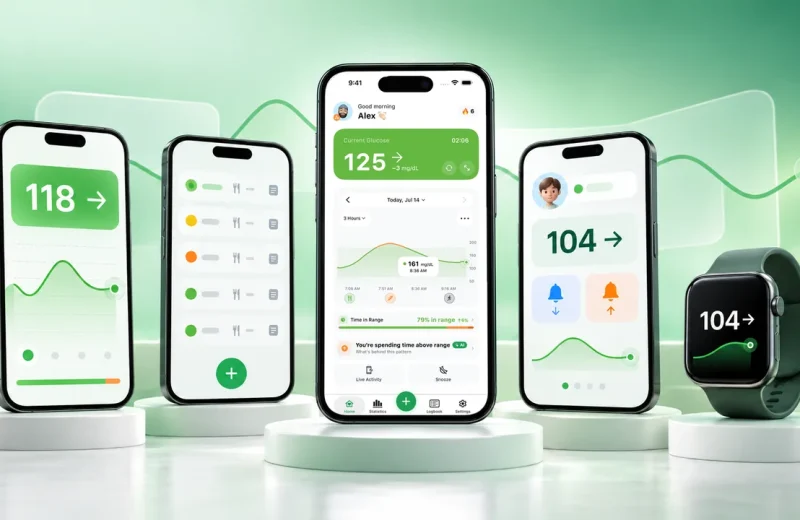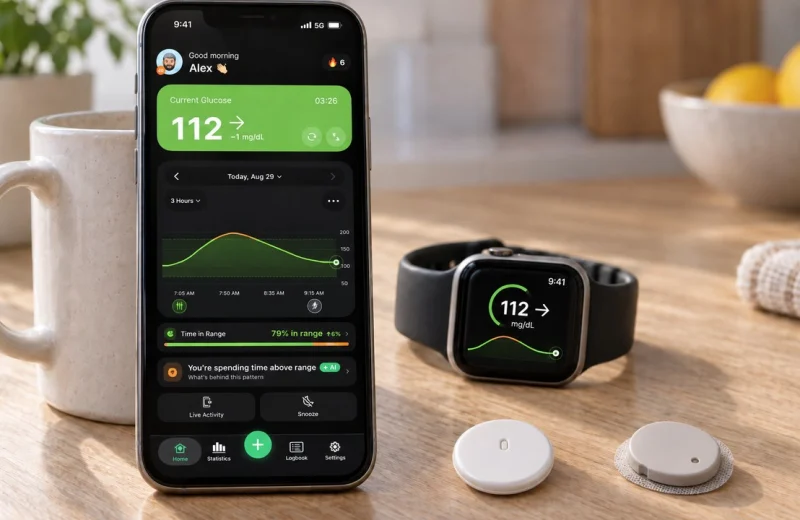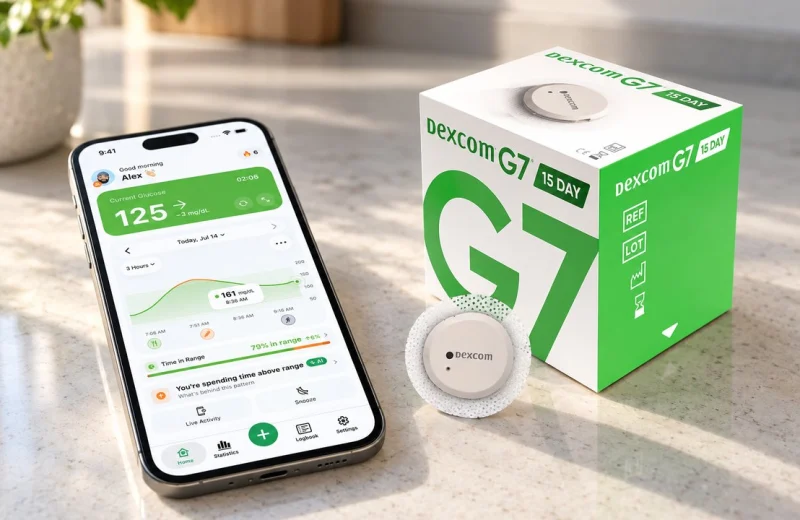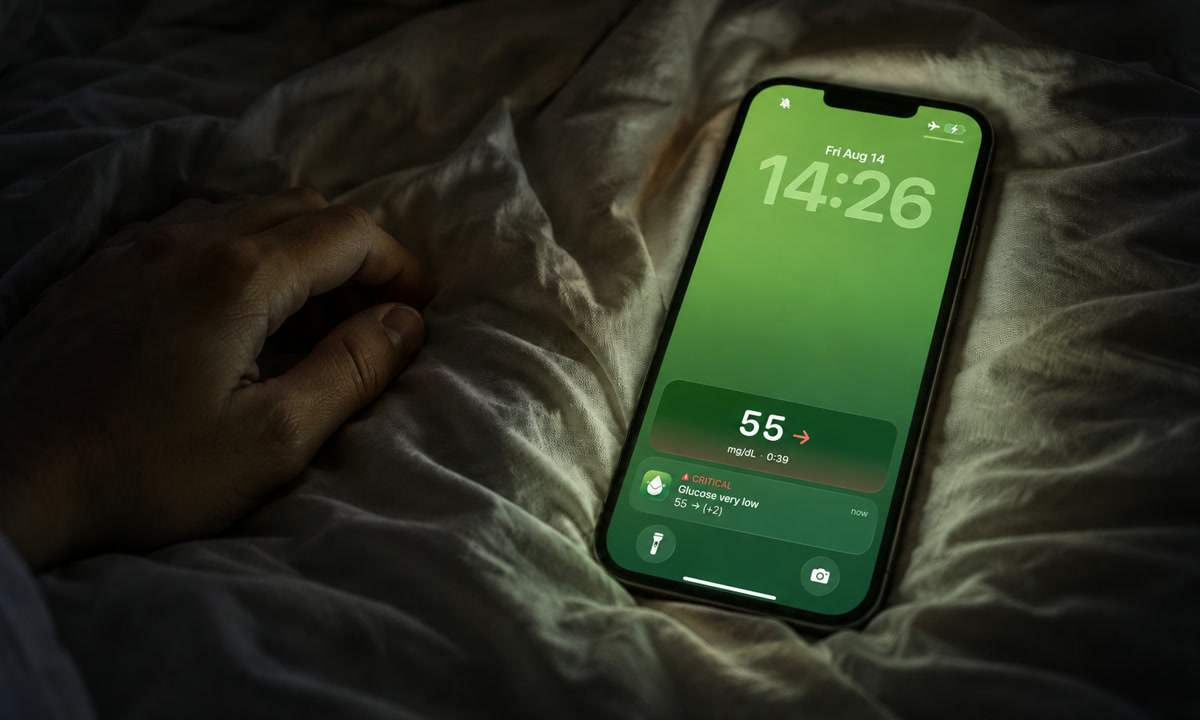
The ringer switch went to silent during dinner and nobody flipped it back. Sleep Focus turns on at eleven. The phone spends the night face down on the nightstand, charging. None of that is careless. It is also the exact setup people picture when they ask whether a Dexcom or Libre low alarm would really reach them at 3 a.m.
Here is the direct answer. A glucose alarm can absolutely sound while your iPhone is on silent mode, in Do Not Disturb, or in Sleep Focus, but only when the app delivers it as an iOS Critical Alert and you have granted that separate permission. Critical Alerts ignore the ring/silent switch and every Focus by design. Ordinary notifications do not.
Nutshell: The setting that decides whether a low wakes you is not your volume slider, it is the per-app Critical Alerts switch in Settings > Notifications. Fix that first, then check Bluetooth audio, Focus and your watch.
On this page
Do Dexcom and Libre alarms ring through Silent mode and Focus?
Yes, when the alarm arrives as a critical alert with permission granted. Apple built that channel to override the ring/silent switch, Do Not Disturb, and every custom Focus, Sleep included, with no allow list to maintain.
Both major CGM makers rely on it. Dexcom’s G7 app will not even run on an iPhone without it: you enable Critical Alerts during onboarding, they cover Urgent Low and Sensor Fail, Dexcom says they “should always play a sound and appear on your lock screen when your smartphone notifications are off, muted, or on Do Not Disturb”, and if you switch them off the app blocks you until they are back on (Dexcom G7 FAQ). The G6 app has the same requirement. Abbott’s FreeStyle Libre 3 and Libre 3 Plus apps ask for the same permission, and Abbott’s instructions go further: keep notifications, critical alerts and Bluetooth turned on, leave the app running in the background, and keep the phone within roughly 33 feet (10 meters) of the sensor.
That documented behavior is the ceiling, not a promise about your particular phone. iOS gives you plenty of switches to undo it, usually by accident, which is what the rest of this article is about.
Why sweat one alarm class? Because a severe low is the one CGM event with a hard time limit. The NIDDK notes that severe hypoglycemia can bring confusion, seizures or loss of consciousness and needs treatment right away, sometimes with help from another person. It also points out that low glucose during sleep is easy to miss (NIDDK, Low Blood Glucose). The 2019 International Consensus on Time in Range put a number on how rare it should be: under 1 percent of the day below 54 mg/dL (3.0 mmol/L) (Battelino et al., 2019). Nights are where most people lose that 1 percent.
Why your iPhone alarm rings on silent but a glucose alert may not
The Clock app’s alarm is a special case: Apple lets it ring through the silent switch and every Focus, which is why most people assume anything called an alarm behaves that way. A glucose alarm is not a Clock alarm. It is an app notification, and iOS sorts those into three tiers. An ordinary notification is silenced by the switch and held back by Focus. A Time Sensitive notification is allowed to show through a Focus, but Dexcom’s own FAQ spells out the limit: it “won’t sound if your phone is set to Mute / DND” (Dexcom, iOS Critical Alerts and Time Sensitive Notifications). Only a Critical Alert ignores both. So the question is never “is my alarm on”, it is “which tier does this alert use, and did I allow it”.
What iOS Critical Alerts are, and which glucose alerts use them
A Critical Alert is a special notification type Apple grants only on request. Two things have to be true for one to reach you: the developer holds Apple’s critical alerts entitlement, and you tapped Allow on a prompt that is separate from the normal “Allow Notifications” prompt.
When both are true, the alert shows up with sound even in silent mode and Focus, at a volume the app sets rather than your ringer slider. You can revoke it any time in Settings > Notifications > [your CGM app] > Allow Critical Alerts. People revoke it more often than you would think, usually during a tired late-night tap-through when an alarm is being annoying.
Not every glucose alert gets the same treatment. Manufacturers reserve the strongest behavior for the alarms that carry real risk, and leave the softer ones configurable:
- Urgent low. The one that is hardest to silence. On Dexcom G7 it is fixed at 55 mg/dL with no off switch in the alert settings; a Quiet Mode can drop it to vibrate at first, and Dexcom says it adds sound if you do not acknowledge it.
- Low glucose. Usually on by default with an adjustable threshold, and usually eligible for critical alert behavior.
- Predictive or “soon” alerts. These warn while you are still in range, based on where the trend is heading. Worth understanding on their own terms; see how predictive low glucose alerts work.
- High glucose. Configurable, and the alarm most people soften first to cut down on noise.
- Signal loss. Easy to overlook and quietly important, because a sensor that is out of range is not watching your night at all.
Open each alarm in your CGM app once a season and read what it is set to do. Thresholds drift over the years, and a low alarm you set at diagnosis may no longer match how you sleep.
Dexcom G7 and G6 on iPhone: Critical Alerts, Time Sensitive and Quiet Modes
Dexcom’s own rules, from its FAQs, are short. On iOS the G7 and G6 apps require Critical Alerts; Urgent Low and Sensor Fail ride on them. Every other alert follows what you chose for it: Dexcom’s recommended iPhone settings page says “Do Not Disturb silences all alerts except for the Urgent Low Soon and important technical alerts”, and that any G7 alert set to Sound in Profile > Alerts “should override your smartphone settings so that you can hear” it (Dexcom, recommended G7 iPhone settings). Set to Vibrate, an alert stays quiet under Do Not Disturb.
Then there are Quiet Modes, Dexcom’s own way of making alerts discreet without touching iOS. Quiet Mode (Vibrate) makes every G7 alert vibrate only, for up to six hours or indefinitely, and you still see the alerts on the lock screen and in the app, with a banner showing when the mode ends. The exceptions are the point: Urgent Low Soon and technical alerts “will still escalate to sound if not acknowledged”, and Urgent Low behaves the same way (Dexcom, G7 alert changes). If a Quiet Modes banner is sitting at the top of your app, that is the first thing to check when an alert seemed to arrive silently.
Three iPhone settings Dexcom names that people never think of: Screen Time’s Downtime and App Limits (add the Dexcom app to Always Allowed), Low Power Mode (Dexcom says it may stop the app working properly), and the Hidden Apps folder introduced with iOS 18, where an app that has been hidden “will not send notifications or alerts to your device” (Dexcom FAQ).
Libre 2 and 3 on iPhone: alarms, Override Do Not Disturb and the app’s Silent Mode
The Libre apps put the choice per alarm: each of the Low, High and Signal Loss alarms has its own Override Do Not Disturb switch, so a low alarm can be allowed through while a high alarm stays polite. Abbott’s setup instructions are the same three lines as Dexcom’s: notifications and critical alerts on, Bluetooth on, app left running in the background, phone within about 33 feet (10 meters) of the sensor.
Two Libre-specific traps. The app has its own Silent Mode, a feature inside the Libre app that turns alarm sounds off; it has nothing to do with the iPhone’s ring/silent switch, and if you searched for “Libre silent mode” hoping to make alarms louder, that is the setting to make sure is off. And the “alarms not available” state means the app has lost contact with the sensor: Abbott’s troubleshooting guide says the Signal Loss alarm, if switched on, notifies you when the sensor has not communicated with the app for 20 minutes, during which no low or high alarm can reach you (Abbott troubleshooting guide). Bluetooth, distance and a force-quit app are the usual causes.
Settings that quietly mute a low alarm
Most “my alarm did not make a sound” reports trace back to about seven iPhone settings, and only one of them is volume. Here is the map.
| Setting | Effect on a critical glucose alert | Where to check |
|---|---|---|
| Silent mode (ring/silent switch or Action button) | None. Critical alerts still play sound. | Control Center bell icon |
| Do Not Disturb, Sleep or a custom Focus | None for critical alerts. Ordinary notifications get held back silently. | Settings > Focus |
| Allow Critical Alerts (per app) | Off means the alarm follows normal rules and can be silenced by everything above. | Settings > Notifications > [CGM app] |
| Scheduled Summary | Can delay non-urgent notifications for hours. No CGM app belongs in it. | Settings > Notifications > Scheduled Summary |
| Hidden Apps folder | A hidden app sends no notifications at all. | App Library > Hidden |
| Bluetooth or AirPlay audio output | Sends the alarm sound to headphones, a car or a speaker instead of the phone. | Control Center > audio output |
| Attention Aware Features | Lowers alert volume while you are looking at the phone. | Settings > Face ID & Passcode |
The Bluetooth one deserves a story. A phone still paired to a bedroom speaker that is switched off, or to earbuds sitting in a drawer with charge left, can route an alarm sound to that device instead of the handset. The alert fired. The room stayed quiet. Same thing happens in a car, where an alarm plays through the stereo at whatever volume the last song was at.
Two more to look at. Airplane mode turns Bluetooth off unless you switch it back on, and no Bluetooth means no sensor connection at all. Force quitting the CGM app from the app switcher stops it working in the background, which is why both Dexcom and Abbott tell you to leave their apps open.
Some people also run a second, independent alert layer on top of the sensor’s own app, on the theory that two alarms from two apps are harder to sleep through than one. That is the reason Sugar Sense exists: it reads Libre data through LibreLinkUp, Dexcom through Share, or a self-hosted Nightscout site, and raises its own high, low and heading-low alerts with their own critical alert permission and its own sound. It never replaces your CGM’s alarms. It sits beside them. The broader case for hearing about a low early is in why real-time glucose alerts matter.
How alerts mirror to Apple Watch
Your watch mostly repeats what your iPhone already decided. Mirrored notifications reach the watch when it is on your wrist, unlocked, with Wrist Detection turned on, and the iPhone is locked or asleep. If you are actively using the phone, the alert stays on the phone. A number that stops refreshing on the wrist is a different problem, covered in Dexcom G7 not updating on Apple Watch.
The watch has its own layer of switches, and they follow the same logic: critical alerts override the watch’s Silent Mode and Focus too, while regular notifications do not. Things to set once and forget:
- Haptic Strength and Prominent Haptic in Settings > Sounds & Haptics on the watch. Prominent adds an extra tap before the alert, which is the difference between noticing and not noticing during sleep.
- Cover to Mute. Handy by day, and a habit that can silence an alert with a sleeve or a pillow at night.
- Watch volume, which is separate from your phone’s.
- Wrist Detection. Off means mirrored notifications stop arriving.
One distinction matters more than any setting: a complication is a display, not an alarm. A number on your watch face tells you where you are when you look. It does not tap your wrist while you sleep. If you want both, set up the reading and the alert separately. More on that in seeing your glucose on your wrist. Overnight, the watch also has to be charged and actually on your arm, which is a real tradeoff for anyone who charges it at bedtime.
A night checklist for urgent lows
Run this once, then run it again after every iOS update and every phone migration, because permissions do not always survive a restore. Ten items, five minutes.
- Open Settings > Notifications > your CGM app. Confirm Allow Notifications and Allow Critical Alerts are both on, plus Sounds and Lock Screen.
- Confirm the same for any second alert app you use.
- Check that neither app sits in Settings > Notifications > Scheduled Summary, and that neither is in the Hidden Apps folder.
- In your CGM app, verify the low alarm threshold, that it is switched on and set to Sound rather than Vibrate, and that any repeat or snooze interval is short enough to be useful.
- Turn on the signal loss or sensor-out-of-range alert.
- Swipe into Control Center and check the audio output is the iPhone itself, not a speaker or earbuds.
- Leave Bluetooth on and the CGM app open in the background. Do not force quit it.
- Keep the phone within the manufacturer’s stated range, roughly 20 to 33 feet depending on the system, and off a soft surface that muffles sound. A hard nightstand carries an alarm better than a duvet.
- On the watch, enable Prominent Haptic, keep Wrist Detection on, and decide whether it will be charged or worn tonight.
- Test it. Set your high alarm temporarily just under your current reading, lock the phone, flip on silent and Sleep Focus, and wait for the alert. Then set the threshold back. One catch: test with an alarm that is actually allowed to break through. In the Libre app each alarm has its own Override Do Not Disturb switch, in the Dexcom app the alert has to be set to Sound, and in Sugar Sense an alert pierces Silent mode only when its priority is set to Critical.
That last step is the only one that proves anything. Everything else is theory until you have heard the sound come out of a silenced phone once. If nighttime lows are a pattern rather than a one-off, the physical clues are worth knowing too: nocturnal hypoglycemia warning signs covers what to look for the morning after, and repeated overnight lows are a conversation for your care team, not a settings problem.
Frequently asked questions
Will Dexcom still sound if my phone is on silent?
Urgent Low and Sensor Fail will, because on iOS they are Critical Alerts and the app cannot run without them. Every other Dexcom alert sounds through silent mode and Do Not Disturb only if you set that alert to Sound in Profile > Alerts; on Vibrate it stays quiet.
Why are my Dexcom G7 alerts not sounding on my iPhone?
Work down the table above, then the Dexcom-specific list: a Quiet Modes banner at the top of the app, an alert set to Vibrate instead of Sound, Screen Time Downtime or App Limits, Low Power Mode, the Hidden Apps folder, and Critical Alerts switched off in iOS Settings, which also blocks the app until you turn them back on.
Why is my Libre 3 saying alarms are not available?
The app has lost contact with the sensor, so it cannot promise any alarm. Bluetooth off, the phone out of range, or a force-quit app are the usual reasons. Keep the Signal Loss alarm on so the silence itself gets announced; Abbott’s guide says it fires after 20 minutes without contact.
Can you turn off Dexcom critical alerts?
You can flip the switch in iOS Settings, but Dexcom’s G7 app then blocks you until they are back on. The sanctioned way to make alerts discreet is a Quiet Mode inside the app, and even there Urgent Low adds sound if you do not acknowledge it.
What are critical alerts on iPhone?
Apple’s highest notification tier, reserved for things like weather emergencies and urgent low glucose. An app needs Apple’s permission to offer them and your separate Allow to send them, and they play a sound through the silent switch, Do Not Disturb and every Focus.
Do alarms go off on silent on iPhone?
Clock app alarms do, always. App alerts do only when they are Critical Alerts you have allowed. A glucose alarm is an app alert, which is the whole reason this article exists.
This article explains iPhone and CGM alert settings for general education. A companion app is an extra layer, never a replacement for your CGM, its own alarms or a fingerstick when something feels off, and any change to how you treat lows belongs with your doctor or diabetes team. Our medical disclaimer spells out the limits.