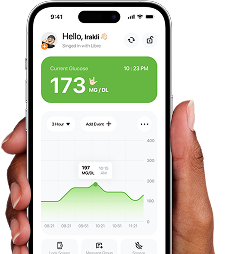
This guide walks you through connecting a FreeStyle Libre 2 or Libre 3 sensor to Sugar Sense, and what to check if your glucose readings aren’t showing up.
The short version: Sugar Sense doesn’t read your sensor directly. It signs in to your LibreLinkUp account and reads the data Abbott shares there. So setup has two parts: (1) make your Libre app share with a LibreLinkUp account, and (2) give Sugar Sense that LibreLinkUp email and password.
How Sugar Sense reads your Libre
When you wear a Libre sensor, your readings live in Abbott’s cloud (LibreView). Abbott lets you share those readings with caregivers through a separate app called LibreLinkUp. Sugar Sense connects exactly the way a caregiver would — it logs in to LibreLinkUp on your behalf and reads your glucose, securely, every few minutes.
That means you’ll end up with two different accounts, and it’s important not to mix them up:
| Account | App you use it in | What it’s for |
|---|---|---|
| LibreView account | The Libre 3 / LibreLink app (paired to your sensor) | Wearing and reading your own sensor |
| LibreLinkUp account | The LibreLinkUp app | Following shared readings — this is the one you give Sugar Sense |
You will enter your LibreLinkUp email and password in Sugar Sense — not your Libre app (LibreView) login.
Step 1 — Set up and activate your sensor
Apply and activate your Libre sensor by following the instructions that came with it, and confirm you can see live readings in the Libre 3 app (or the LibreLink app for Libre 2). If readings don’t appear in Abbott’s own app yet, fix that first — Sugar Sense can only read data that already exists in your Libre account.
Step 2 — Share your data with LibreLinkUp
In the Libre 3 app (or LibreLink for Libre 2):
- Open Connected Apps.
- Next to LibreLinkUp, tap Manage (or Connect).
- Tap Add Connection.
- Enter a first name, last name, and email address to invite.
Tip: Use a different email here than your Libre app (LibreView) login. It makes it much easier to keep the two accounts straight later.
Now open that email inbox. The invitation will ask you to install the LibreLinkUp app and create an account. Sign up with the same email address you just invited. This is the account Sugar Sense will use.
Step 3 — Confirm readings in the LibreLinkUp app
Open the LibreLinkUp app and sign in with your new LibreLinkUp account. Within a few minutes you should see your glucose readings. Tap the menu and open Manage Connections — you should see an active connection with the name of the person whose readings you’re following (that’s you, if you set this up for yourself).
If you can’t see readings here, stop and fix this first. If LibreLinkUp itself has no data, Sugar Sense can’t get any either.
Step 4 — Connect in Sugar Sense
- On the Sugar Sense connection screen, choose FreeStyle Libre.
- Enter your LibreLinkUp email and password.
- Tap Connect.
Your readings start flowing within a few minutes, and refresh automatically about every 5 minutes from then on.
Troubleshooting “No Data”
- Check the LibreLinkUp app first. Always confirm you can see up-to-date readings in the LibreLinkUp app. If you can, the problem is between LibreLinkUp and Sugar Sense. If you can’t, the problem is between Libre and LibreLinkUp — go back to Step 2.
- “No patients shared with that account.” The LibreLinkUp account you gave Sugar Sense isn’t following anyone yet. Re-check Step 2, and make sure the account you’re using in Sugar Sense is the same LibreLinkUp account that received the share invitation.
- Accept Libre’s new Terms. Abbott occasionally requires you to re-accept their Terms of Service before data sharing works again. Log out and back in to both the Libre app and the LibreLinkUp app, accept any new terms, then wait 15–20 minutes before checking Sugar Sense again.
- Re-enter your credentials in Sugar Sense. Go to Settings → Log out, then connect again and re-enter your LibreLinkUp email and password. (This is how you refresh a stale connection.)
- Make sure it’s the right password. Use your LibreLinkUp password — not your Libre app (LibreView) password. They are different accounts.
- Region note (Libre 2). Libre 2 sharing through LibreLinkUp isn’t available in every region. Libre 3 is supported everywhere LibreLinkUp is available.
Still stuck?
Email us at [email protected] and tell us:
- the email address on your LibreLinkUp account (this helps us locate the connection), and
- what you see in the LibreLinkUp app itself (readings, or an error).
Never send us your password — we’ll never ask for it by email.
Safety reminder: Sugar Sense is for monitoring and awareness. Never make treatment or dosing decisions based solely on data from this app — always follow your CGM device’s instructions and your healthcare provider’s guidance.